👻 Psst Use code SPOOKY2026 at checkout for 30% off on the Lambda Store up until
Lambda Workbench is an in-game tool that allows you to experiment with weapon finishes.
Lambda Content Authoring Tools now includes a desktop version of Workbench (currently in beta), which lets you create weapon finishes without launching the game.
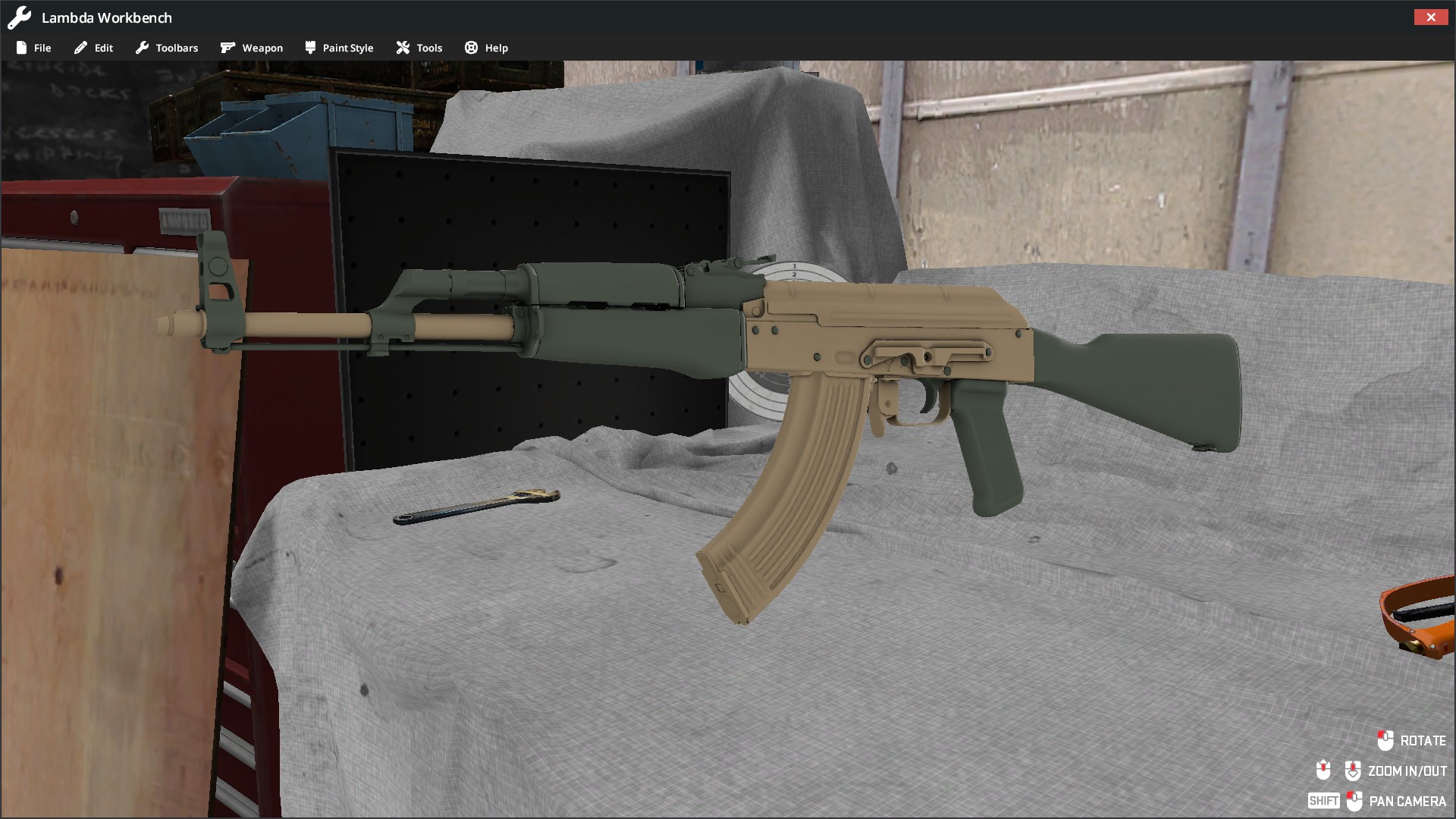
The controls for Workbench are fairly simple and are shown in the bottom right.
Hold down MOUSE LEFT to rotate the weapon a complete 360 degrees.
You can use your mouse wheel to zoom in and out.
By holding SHIFT and MOUSE LEFT you can pan the camera.
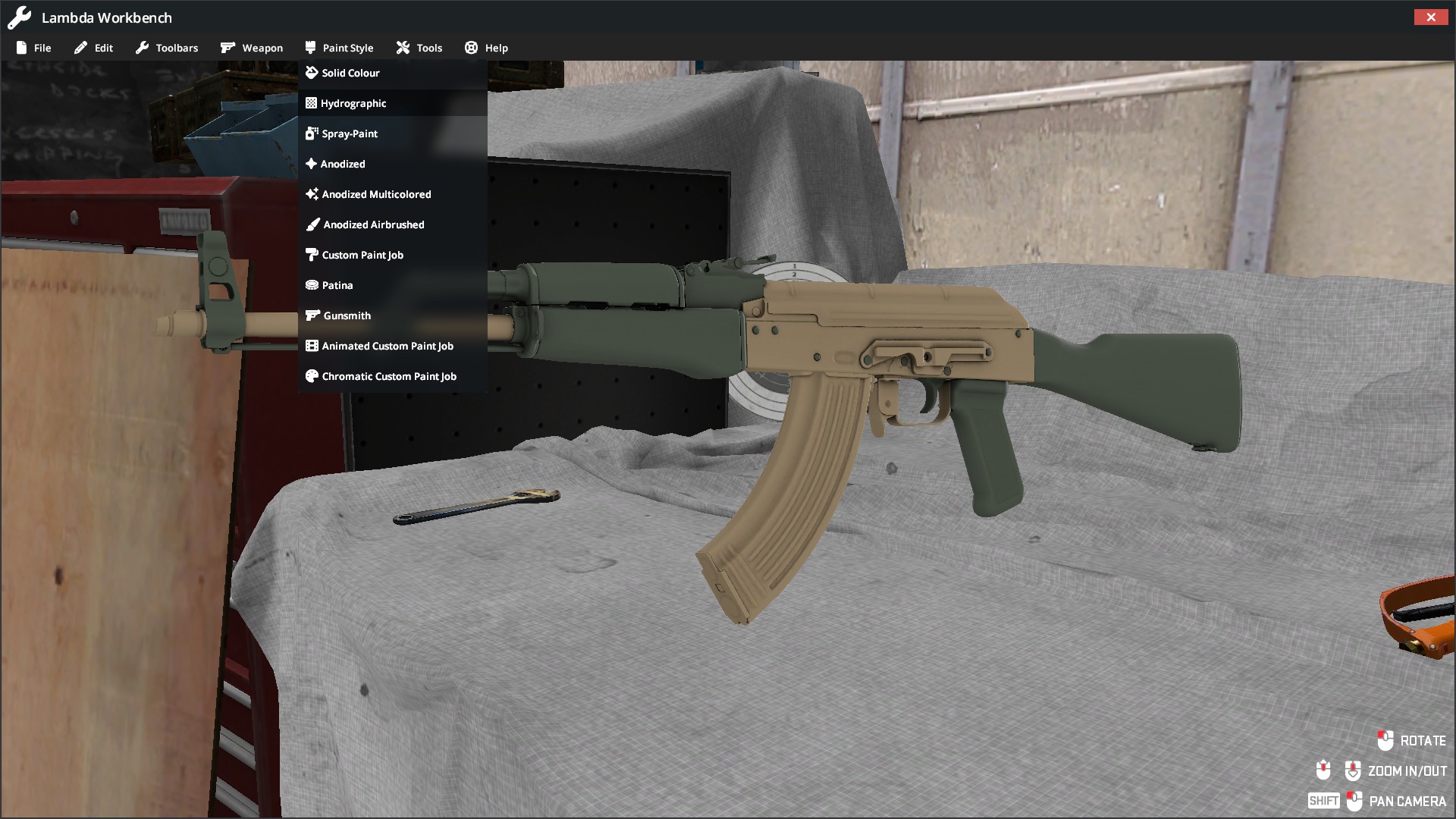
By clicking on the "Paint Style" menu, you get a list of all available Paint Styles that you can configure in Lambda Workbench.
Changing paint style will load an example Paint Kit of that style, meaning any changes you've made such as pattern offsets, rotations and colours will be overwritten.
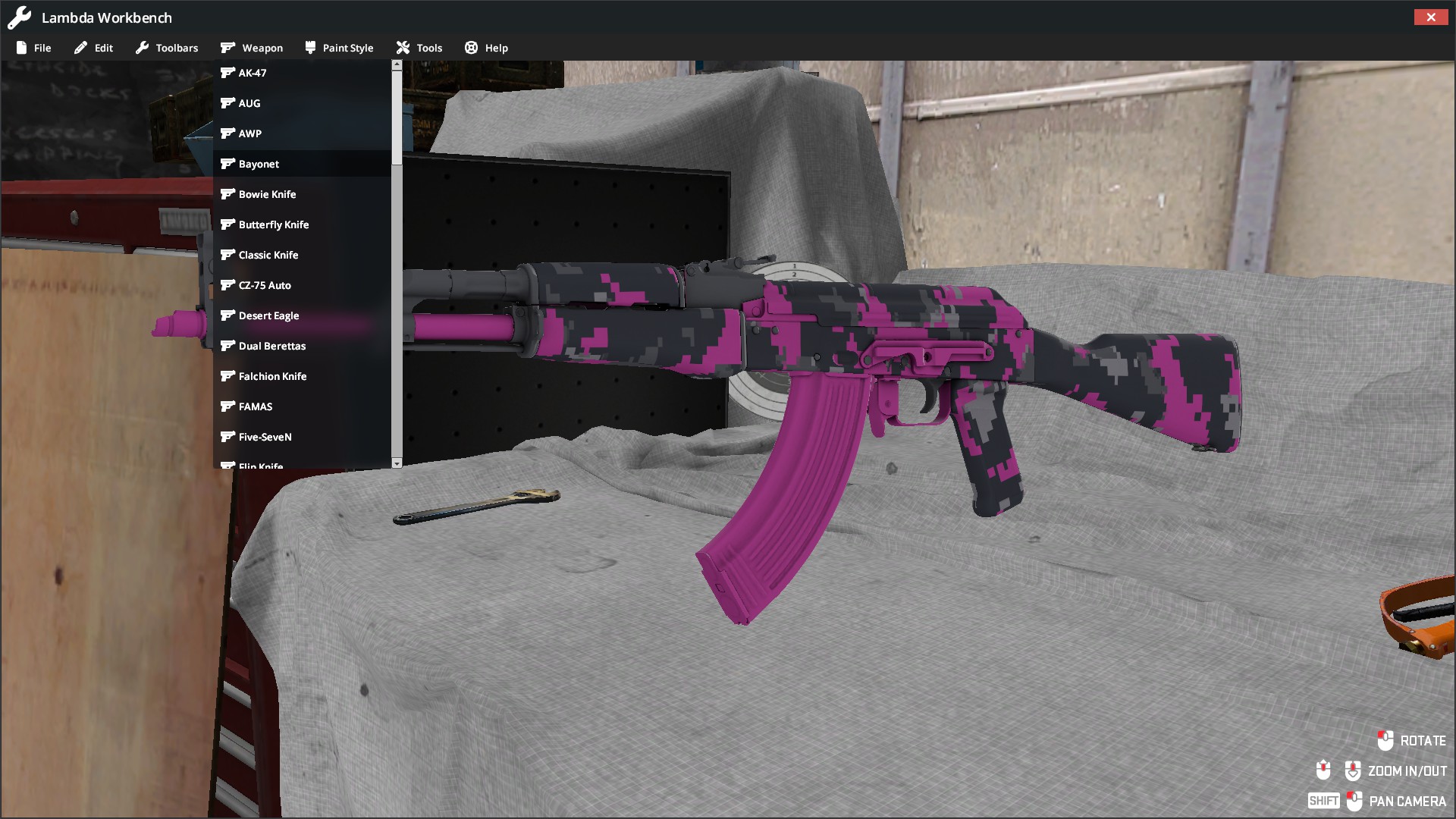
By clicking on the "Weapon Menu" you get a list of weapons that support composite painting.
There are two toolbars you can use to get a live preview of your paint kit.
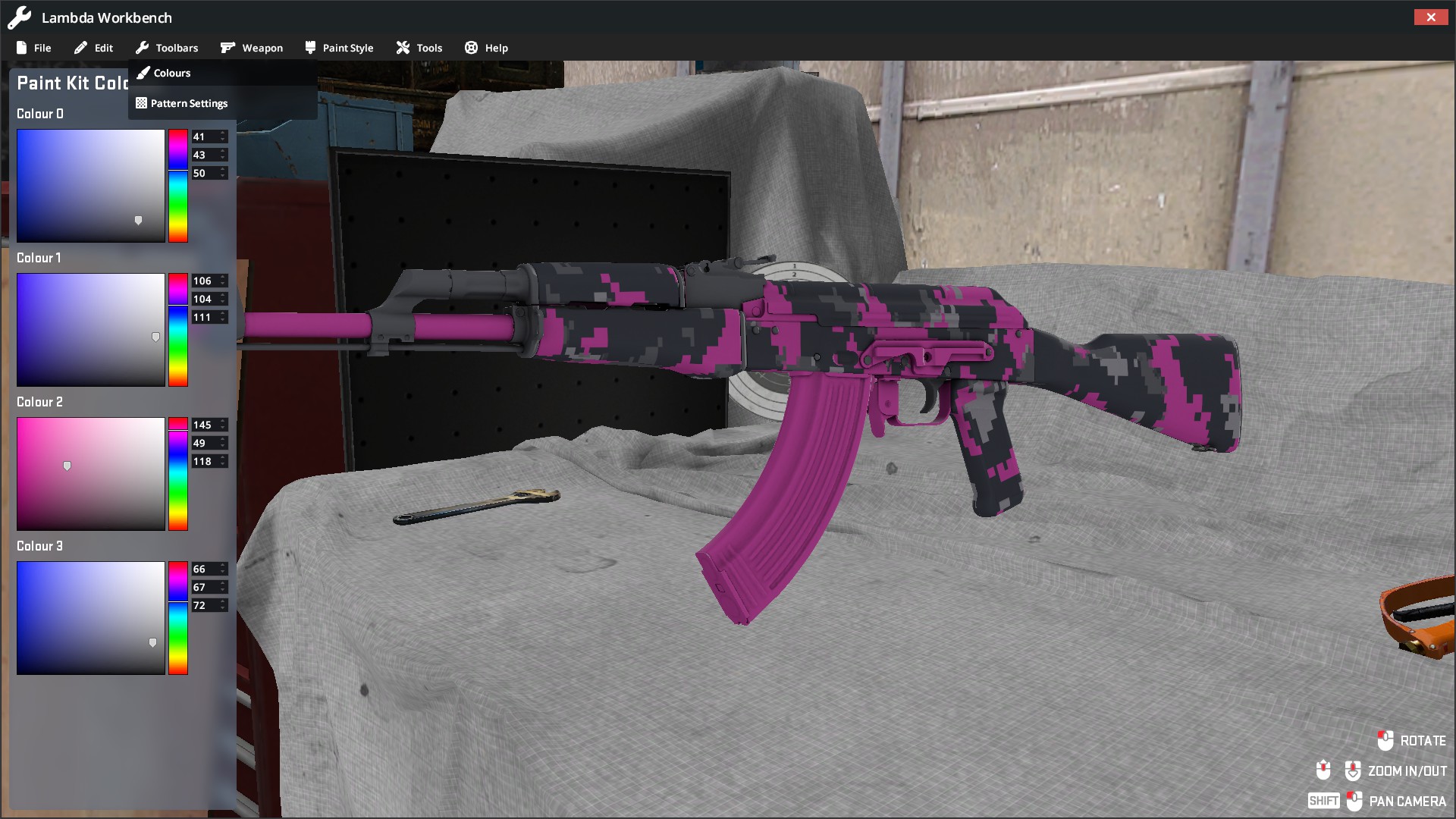
Colour control allows you to change the pattern or solid colours in real time.
This is good for experimenting and seeing how the PBN (Paint-By-Number) system works.
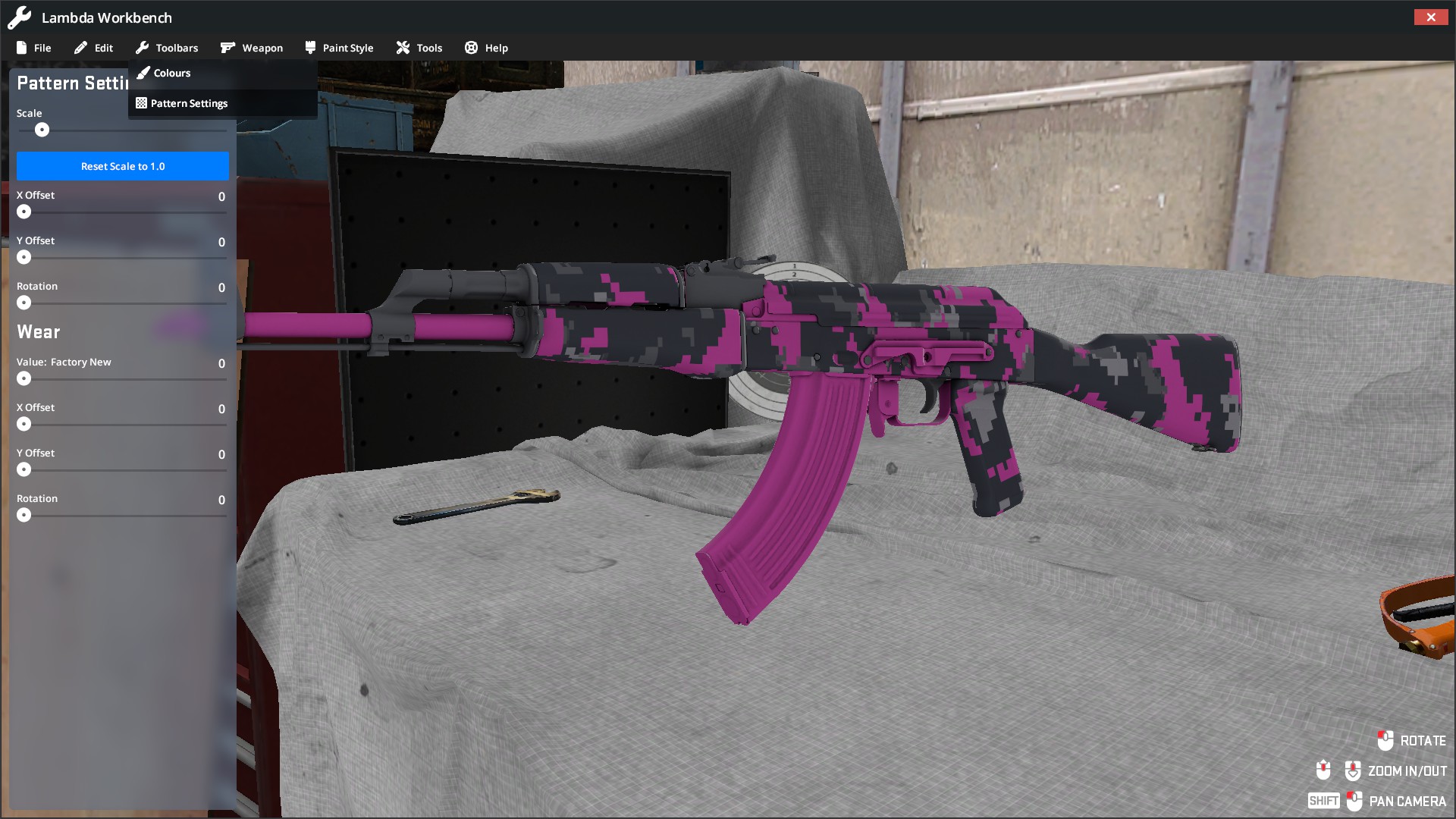
Pattern Control allows you to control aspects of both the pattern and wear.
You can configure the scale for your paint kit and view how your pattern will look with X & Y offsets and rotation.
You can also change the wear value and see how your paint kit will look at different wear levels and randomisations such as offsets and rotation.
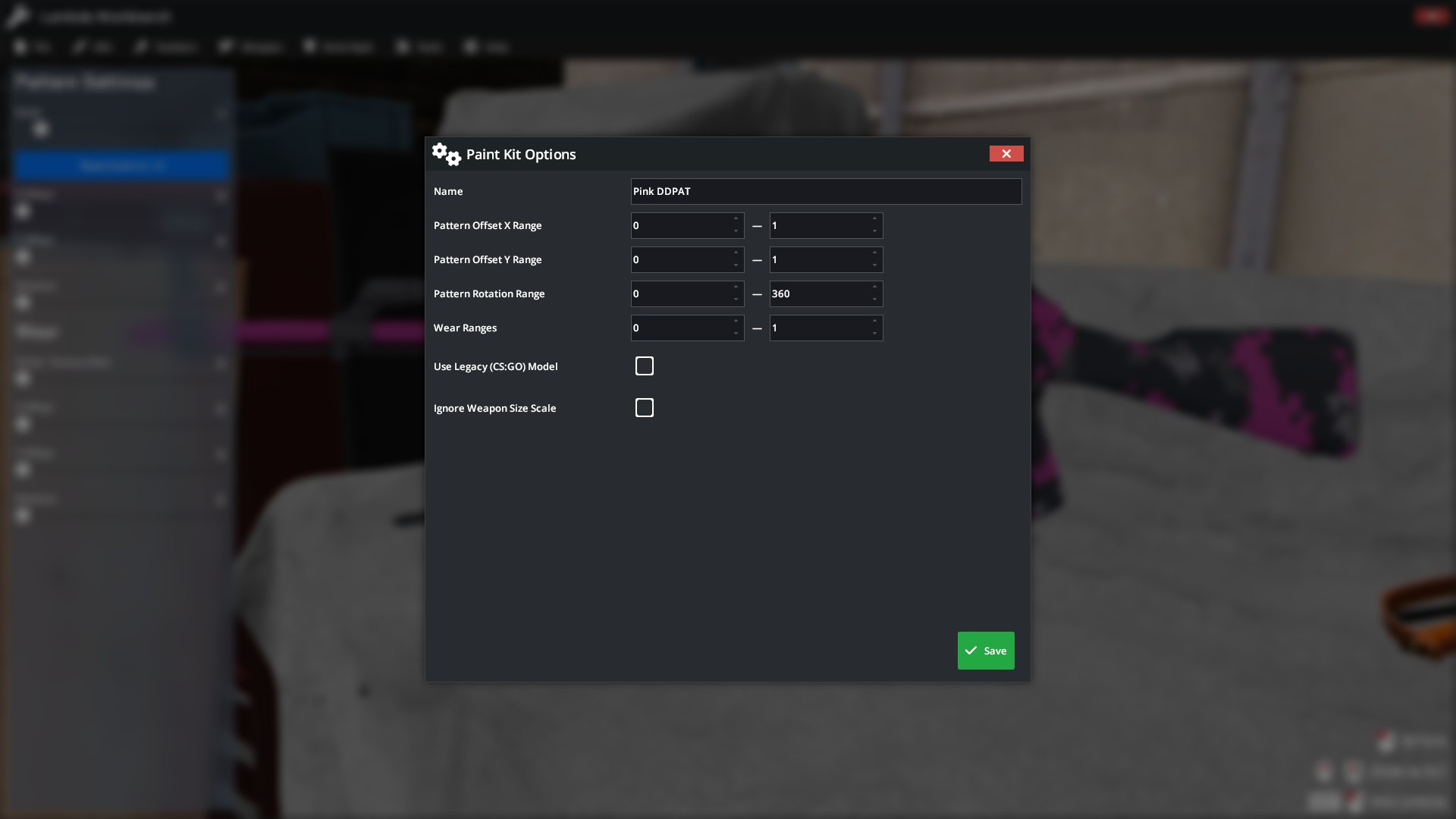
By clicking on Edit and then selecting "Paint Kit Settings", you can modify various aspects of your paint kit, such as the name and description, and configure maximum translation, rotation, and wear values.
By clicking on Edit and then selecting "Composite Inputs" you get a window that shows all current textures used for your Paint Kit.
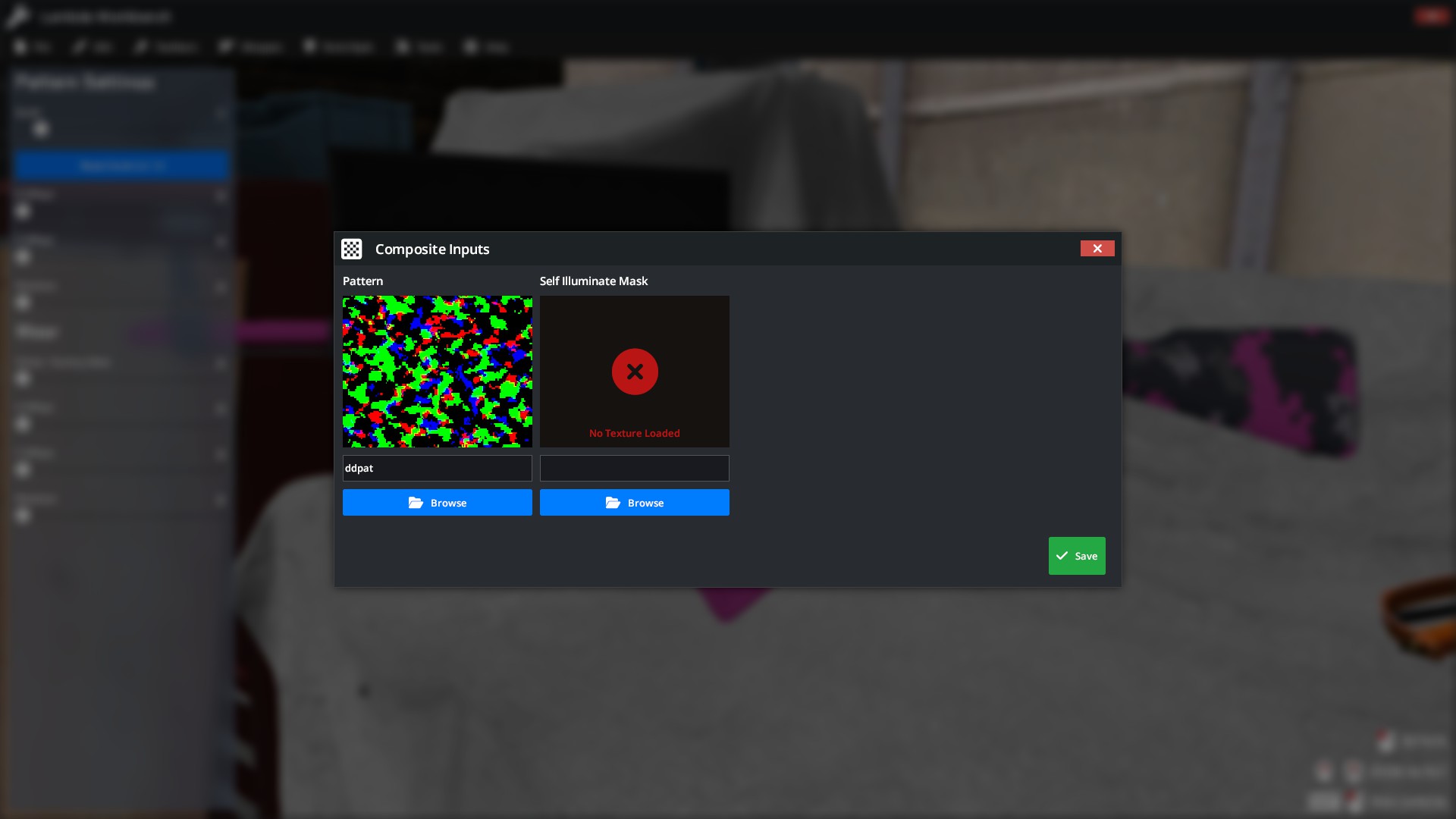
Each Paint Style requires you to put your input textures into different folders.
You will be required to create the following folder structure. You can either put this structure within an addon or within the main materials directory in Garry's Mod.
Here is an example folder structure if you were to use the materials folder in Garry's Mod.
Or, if you want to keep your Workbench files in their own addon, you can do that too.
When browsing for the pattern, it should show up.
Depending on what composite input you are trying to load, it will expect a certain file naming scheme.
These are as follows:
| Composite Input | Supported Styles | File Name Format | Example |
|---|---|---|---|
| Pattern | All (Except Solid Colour) | *.vtf | ddpat.vtf |
| Bump Map | Custom, Gunsmith | *_normal.vtf | ddpat_normal.vtf |
| Phong Exponent | Anodized Multi-colored | *_phong.vtf | ddpat_phong.vtf |
| Animation Mask | Animated Style | *_anim_mask.vtf | ddpat_anim_mask.vtf |
| Colour Mask | Chromatic Style | *_color_mask.vtf | ddpat_color_mask.vtf |
| Self Illum Mask | Solid Colour, Hydrographic, Spray Paint, Custom, Animated, Chromatic | *_glow_mask.vtf | ddpat_glow_mask.vtf |


 Counter-Strike: Global Offensive
 Counter-Strike 2
 Left 4 Dead 2