👻 Psst Use code SPOOKY2026 at checkout for 30% off on the Lambda Store up until
Composer is a tool for creating, packaging and testing music kits.
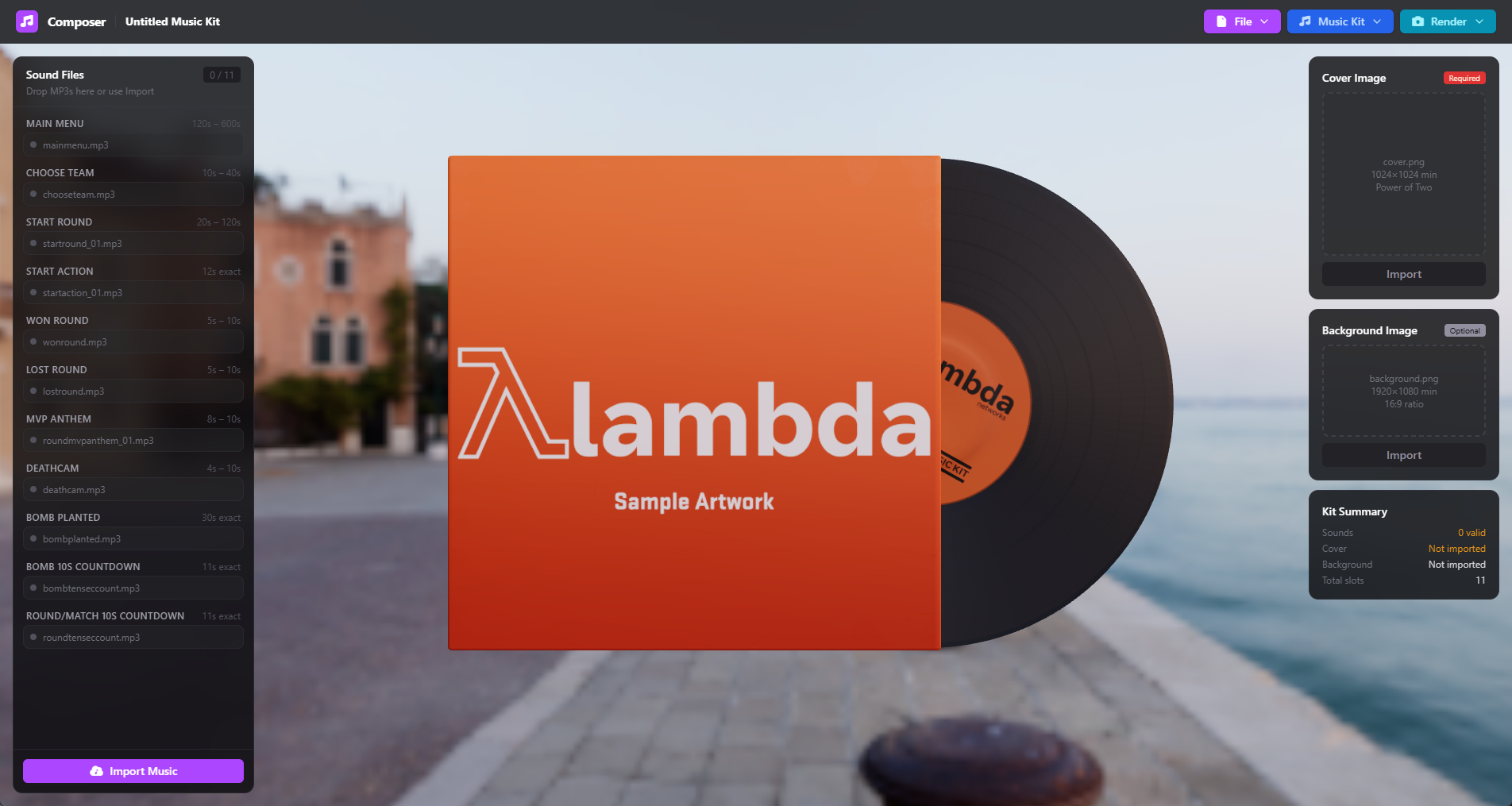
On the left is the sound files panel. You can either click on the Import Music button or drag the files to the Sound Files bar.
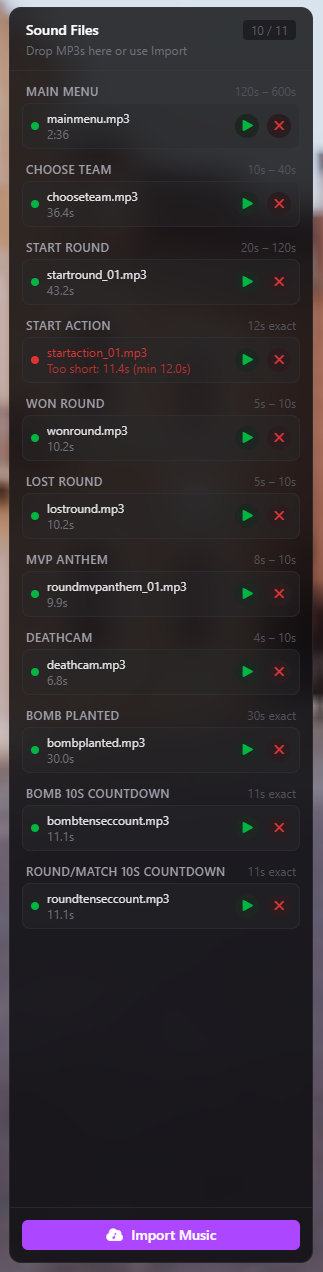
Upon import, your files will be checked for file naming as per the Standards and Requirements page; sound lengths will also be checked.
If any of your files do not meet the requirements for each category, this will be displayed in red, stating what is wrong with the file.
At minimum, you need to provide a cover image that is at least 1024x1024.
The cover image also needs to be a power of two.
Backgrounds are optional. If you add one, it will show up when inspecting your music kit in-game.
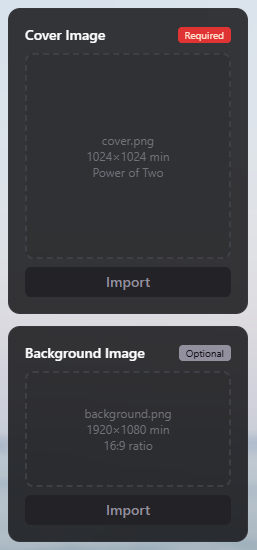
Simply drag in your artwork or click on the import buttons to add it to your project.
Once you've imported your cover artwork, it will render onto the record 3D model, giving you a preview of what your kit will look like in-game.
There are various settings you can configure for your music kit. By clicking on "Music Kit" and then "Options" you can access these settings.
To start, enter the name of your music kit and the artist(s) who created the music.
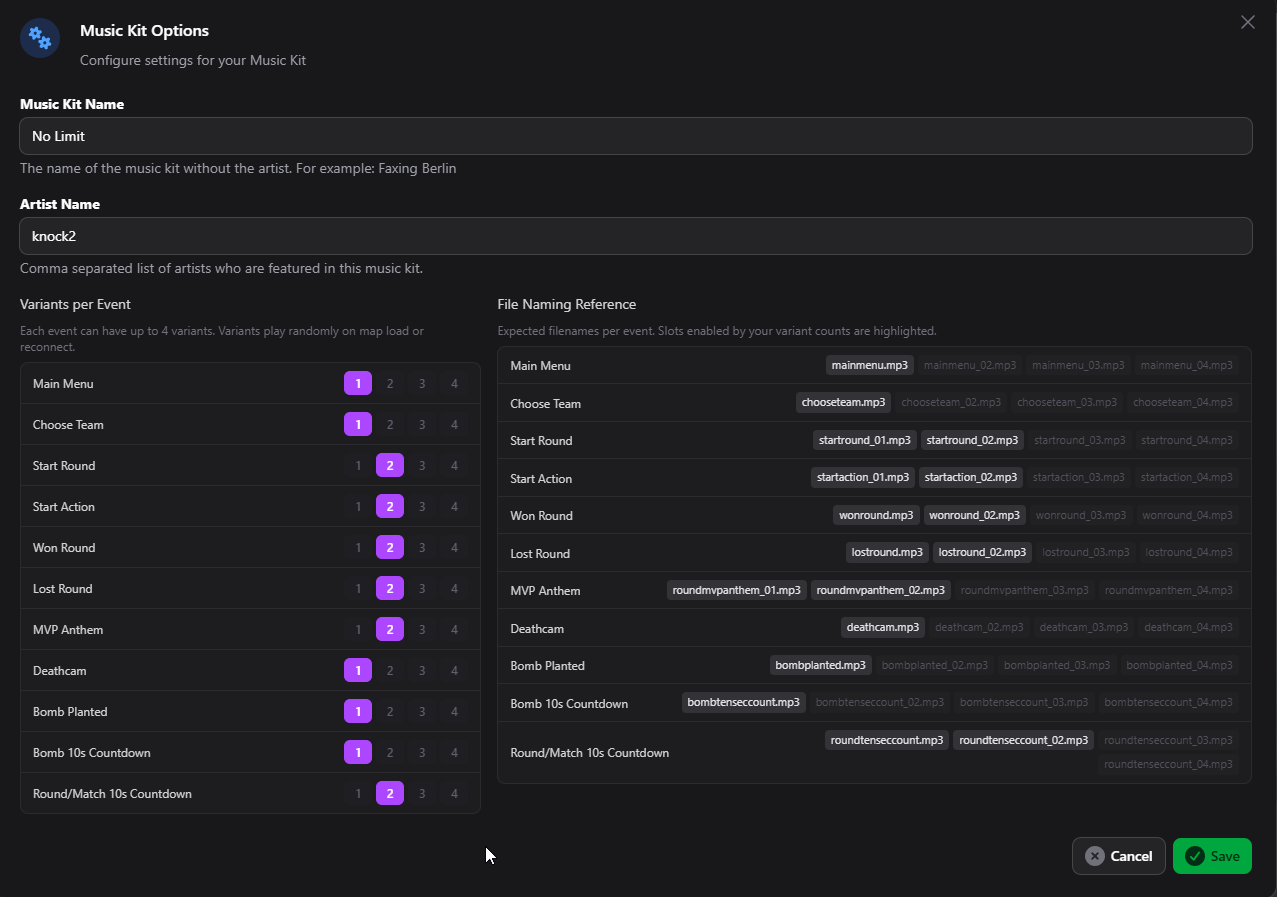
You can also configure how many variants your kit has. Once you click Save, the settings are stored, and if you've changed any variant counts, more slots will appear on the Sound Files panel.
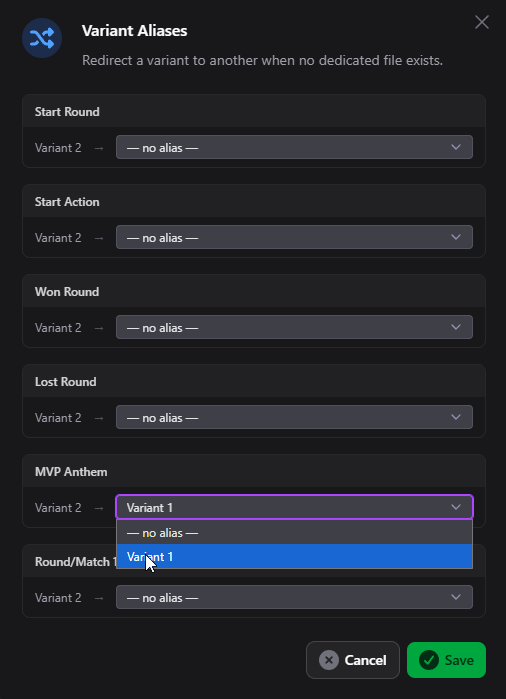
Variant Aliases allow you to redirect variants to other variants.
An example would look like this:
Your music kit has 4 variants for every sound except for the main menu, where you only have mainmenu.mp3 and mainmenu_04.mp3.
Here you can set "Main Menu" to have 4 variants, redirect Variant #2 to Variant #1, and redirect Variant #3 to Variant #4.
You can access variant aliases by clicking on "Music Kit" and then "Variant Aliases".
Like other tools in CAT, you can set the "environment". This is effectively a skybox for the 3D scene that changes how lighting behaves, allowing you to view how 3D models will look under different lighting conditions.
All tools support the same set of environments:
Composer can also display your background over the environment if you prefer. Lighting from whichever skybox is selected still takes effect in this case.
You can also create a transparent render of your music kit. This will export as a PNG which you can use in your Workshop artwork for promotional material. We will not use this render if your music kit is accepted, as we have our own rendering pipeline using Blender.


 Counter-Strike: Global Offensive
 Counter-Strike 2
 Left 4 Dead 2