👻 Psst Use code SPOOKY2026 at checkout for 30% off on the Lambda Store up until
Lambda Citadel is used to package up your content creation project and compile it into the Lambda Workshop Addon file format for uploading to the Lambda Workshop.
Citadel supports the following content creation project types:
Each project type has a different folder layout that is appropriate to that project type. For example, Music Kits only have Sound and Asset directories, while Paint Kits have Materials, Paint Kits, and more.
There are some configuration changes you can make to Citadel that affect the way it exports and compiles your project.
Go to Edit and then Citadel Preferences.
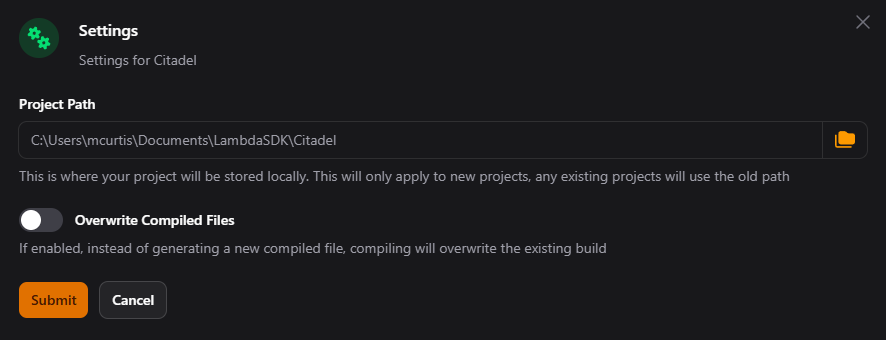
The creative tools in Lambda CAT (Printworks, Composer and Vandal) support exporting data directly to Citadel, however this section covers creating a project from scratch.
Open Citadel by clicking on the "Lambda Citadel" tile on the Dashboard.
This will then open Citadel on the dashboard.
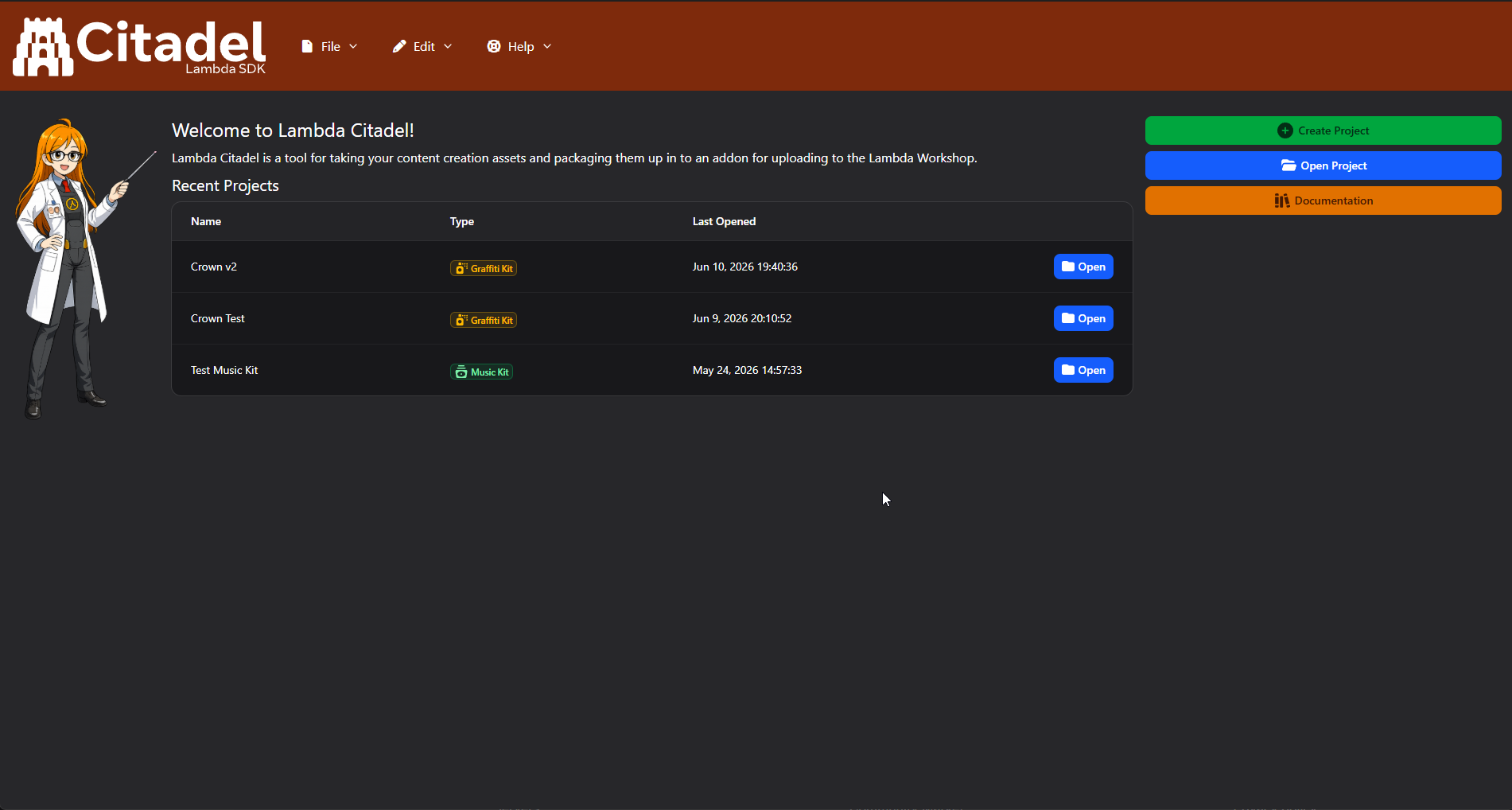
The Dashboard shows any recent projects plus some quick links to the most common actions.
To get started, click on "Create Project".
The form is fairly simple: enter a name for your project, select the project type, and specify any co-authors.
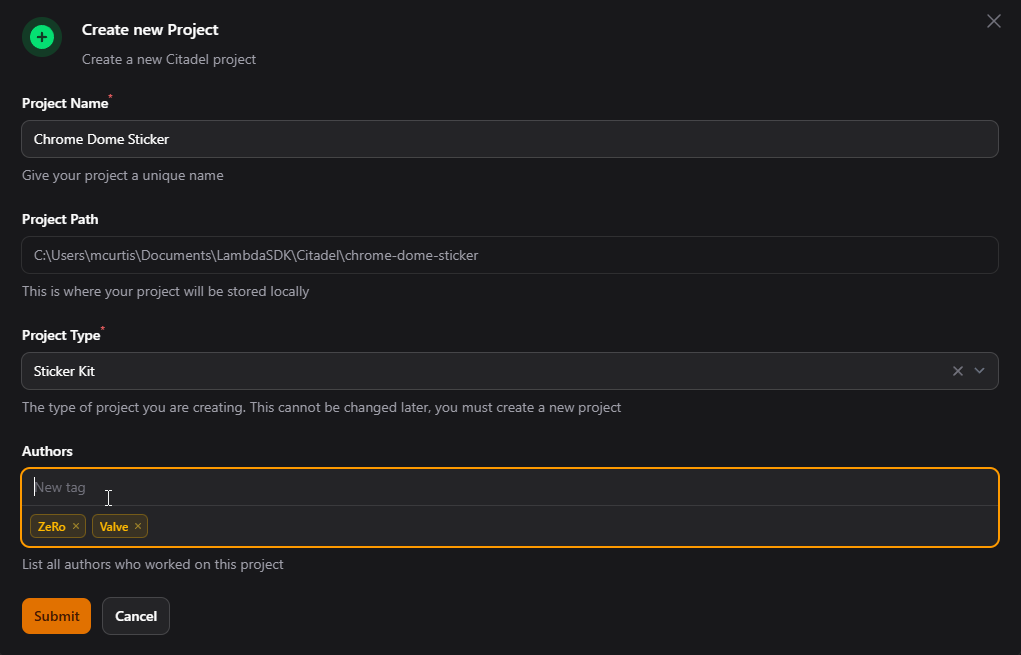
Once you have created a project, you cannot change the project type. You will need to delete the project and re-create it.
Click Submit, and you will be redirected to your new project.
Citadel is fairly easy to use with a user-friendly interface. This image shows the different sections when you are working on a Citadel Project.
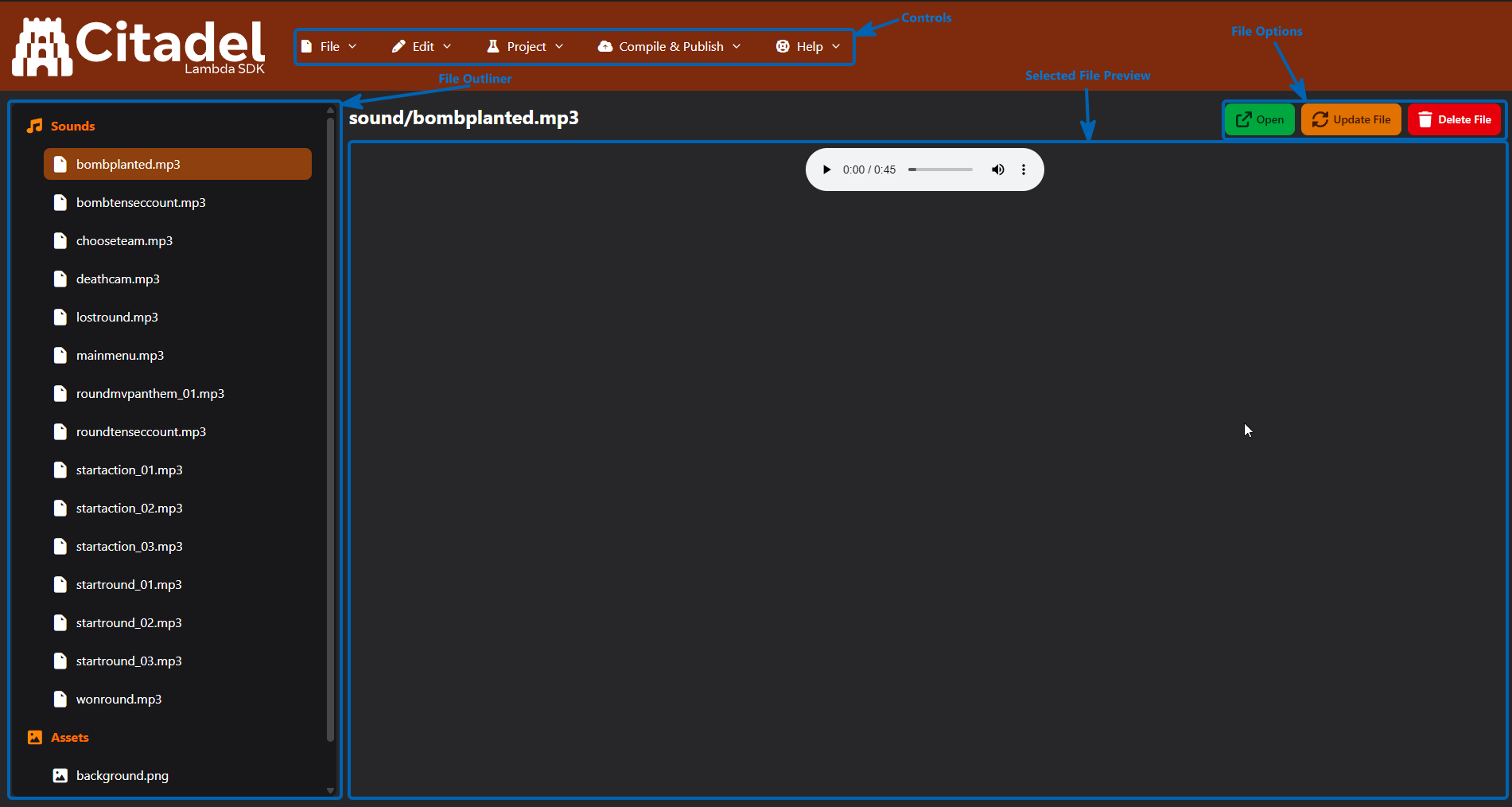
To add a file, click on "Project" and then "Add Files".
You can add multiple files at once: select the destination folder, then select all the files you want to add.
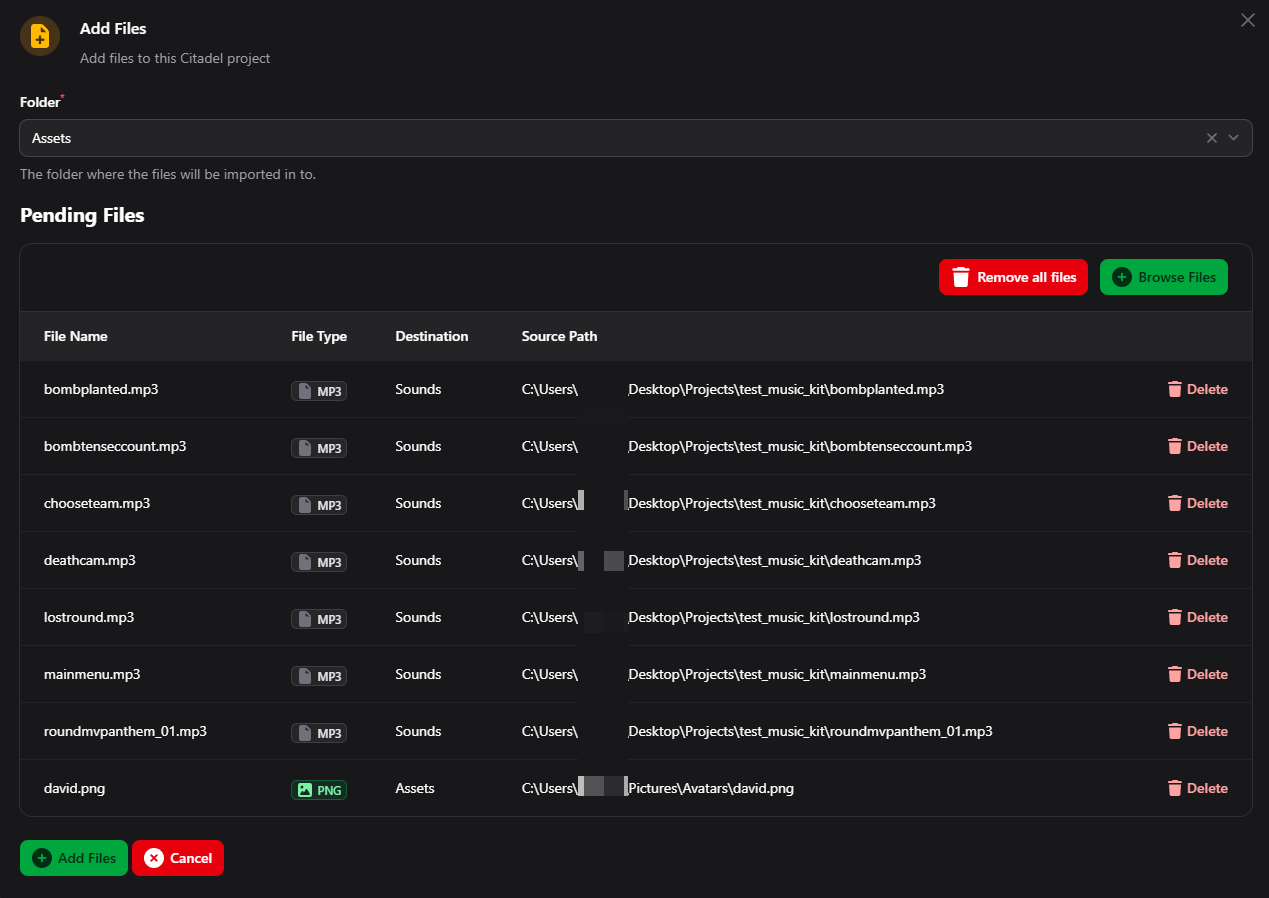
The files you've selected will be shown in the Pending Files table, which allows you to confirm that they are the correct files.
Click Add Files and the files will be copied from their source location to the project folder.
Once all your files are imported into Citadel, you need to compile your project.
Click on "Compile & Publish" and then click on "Compile".
You will be presented with a wizard, first with an introduction and then with compile checks.
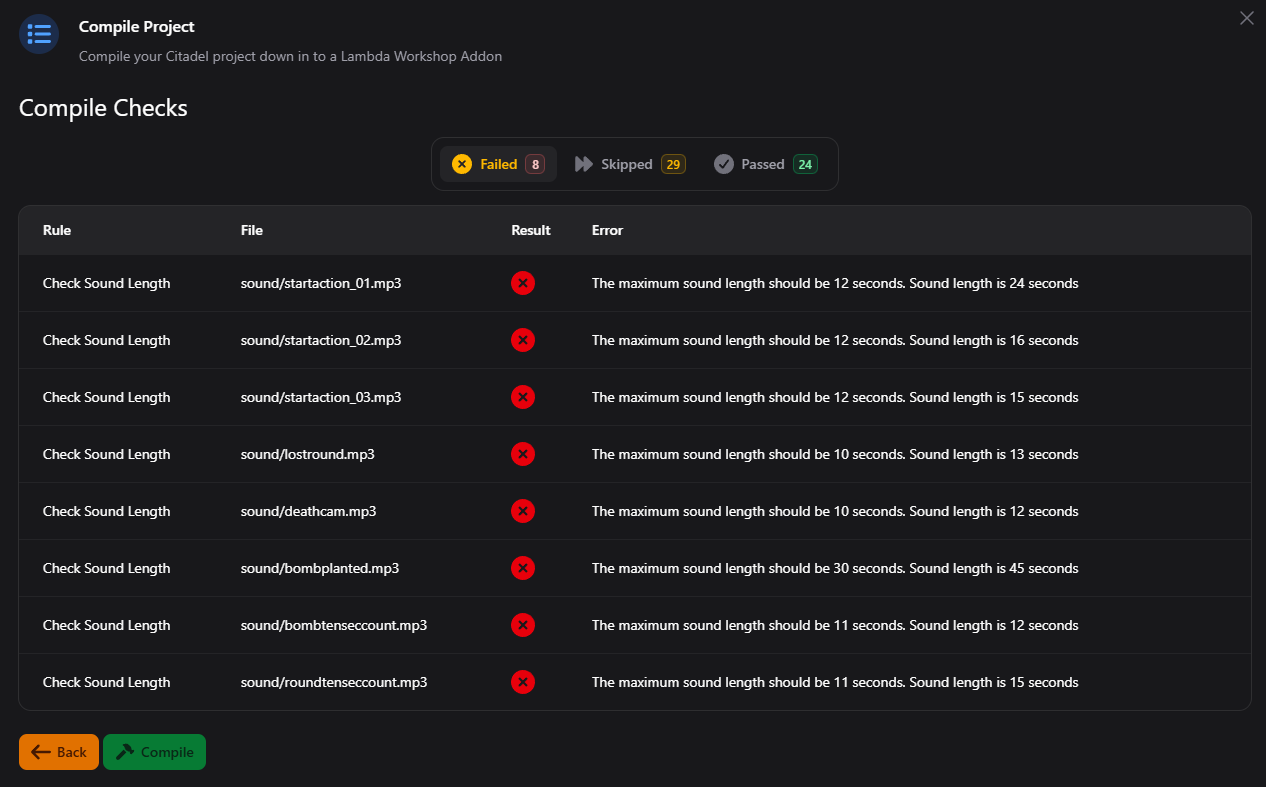
We perform compile checks to ensure that your project meets the requirements to be published to the Workshop.
For some project types such as Music Kits, it will also check that sound files meet minimum and maximum sound lengths and check that submitted artwork meets sizing requirements.
For most project types, it checks the existence of files in the required folders.
Compile Checks are filtered into Failed, Skipped, and Passed, and you can click on each to see more details.
See Publishing for how to publish your Citadel projects. You can publish directly from Citadel.


 Counter-Strike: Global Offensive
 Counter-Strike 2
 Left 4 Dead 2