👻 Psst Use code SPOOKY2026 at checkout for 30% off on the Lambda Store up until
Content Authoring Tools contains a tool under Hammer++ called Cartographer.
Cartographer is based on a CS:GO Tool called Terri's Auto Radar (TAR), which has since been re-written from scratch in C#, however we still use the same entity names and vis groups. Since the original was only designed to work with CS:GO, we've also added in native Source Engine mounting so that it works with content from other Source Engine games, with additional support for the Garry's Mod mounting system.
Before you can use Cartographer, you need to make some changes to your map.
From the Content Authoring Tools Dashboard, install the FGD for "Auto-Radar Entities" if you have not already.
The layout of your map is defined by putting playable areas into a specific vis group.
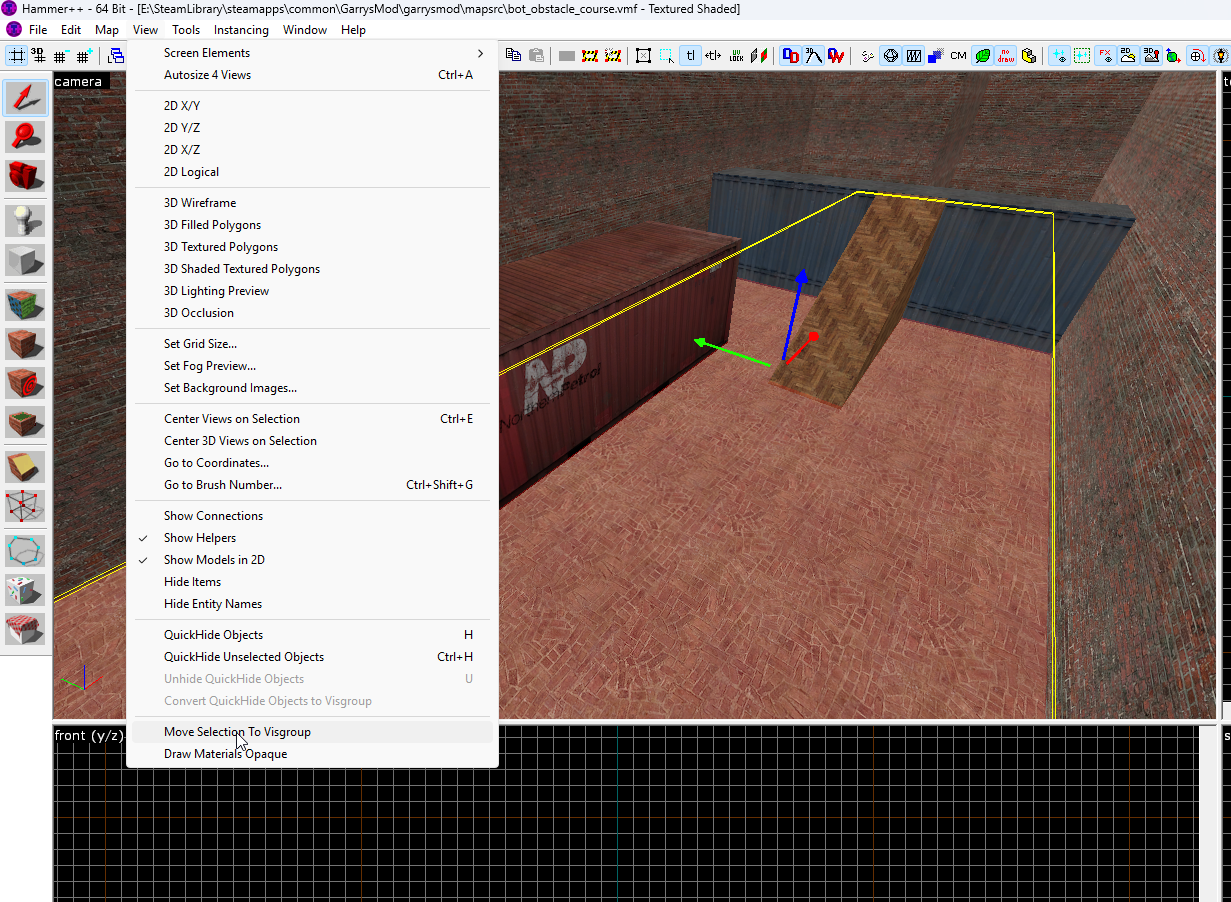
Put the general playable area brushes and displacements into a vis group called tar_layout.
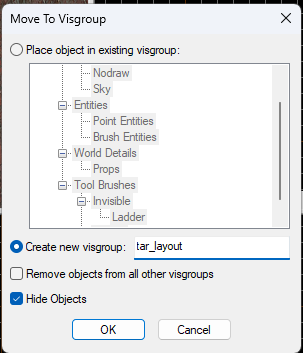
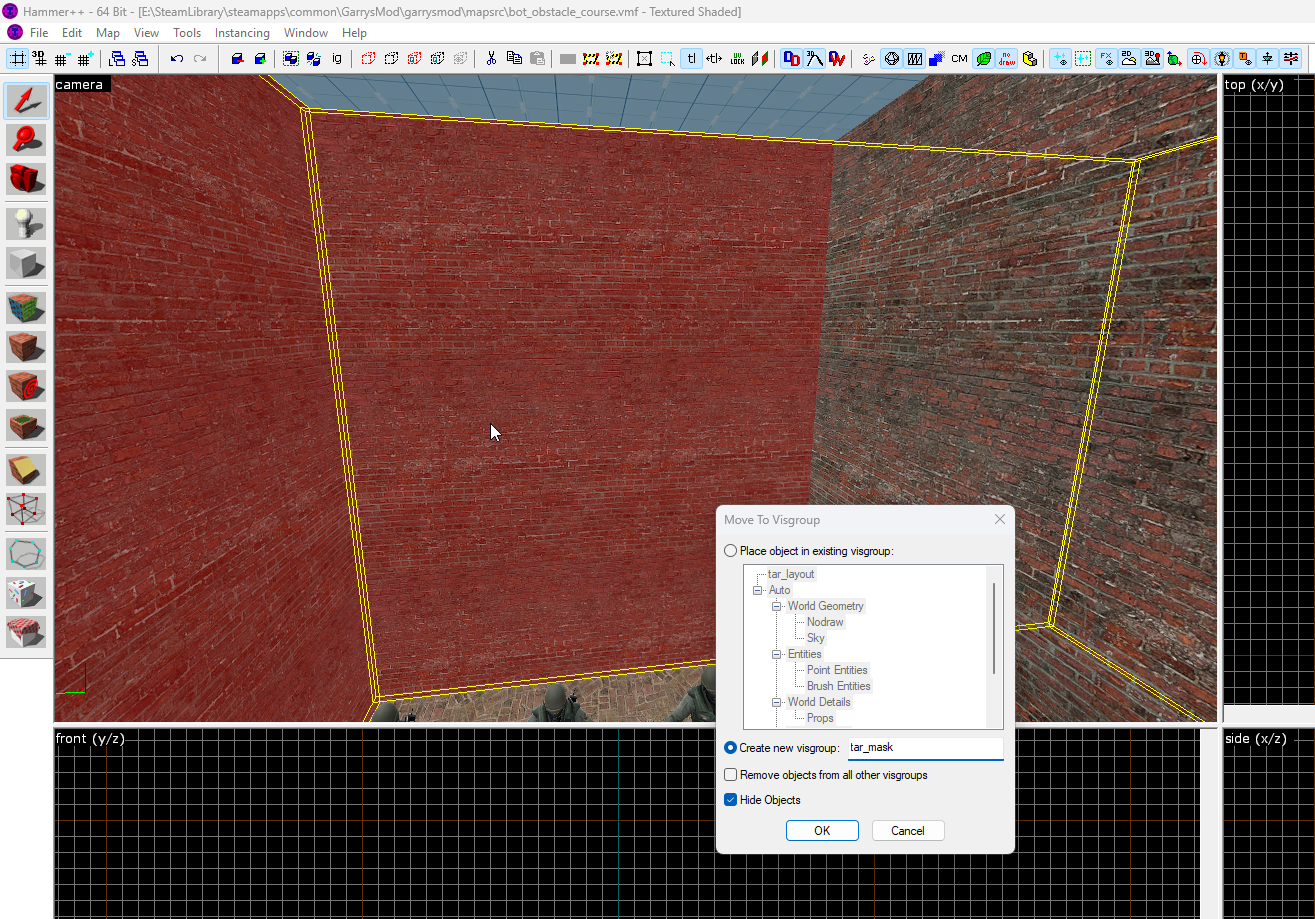
You can assign brushes that limit the playable space to the tar_mask vis-group.
You would generally use this for walls that limit the playable area, or for buildings inside that are not enterable.
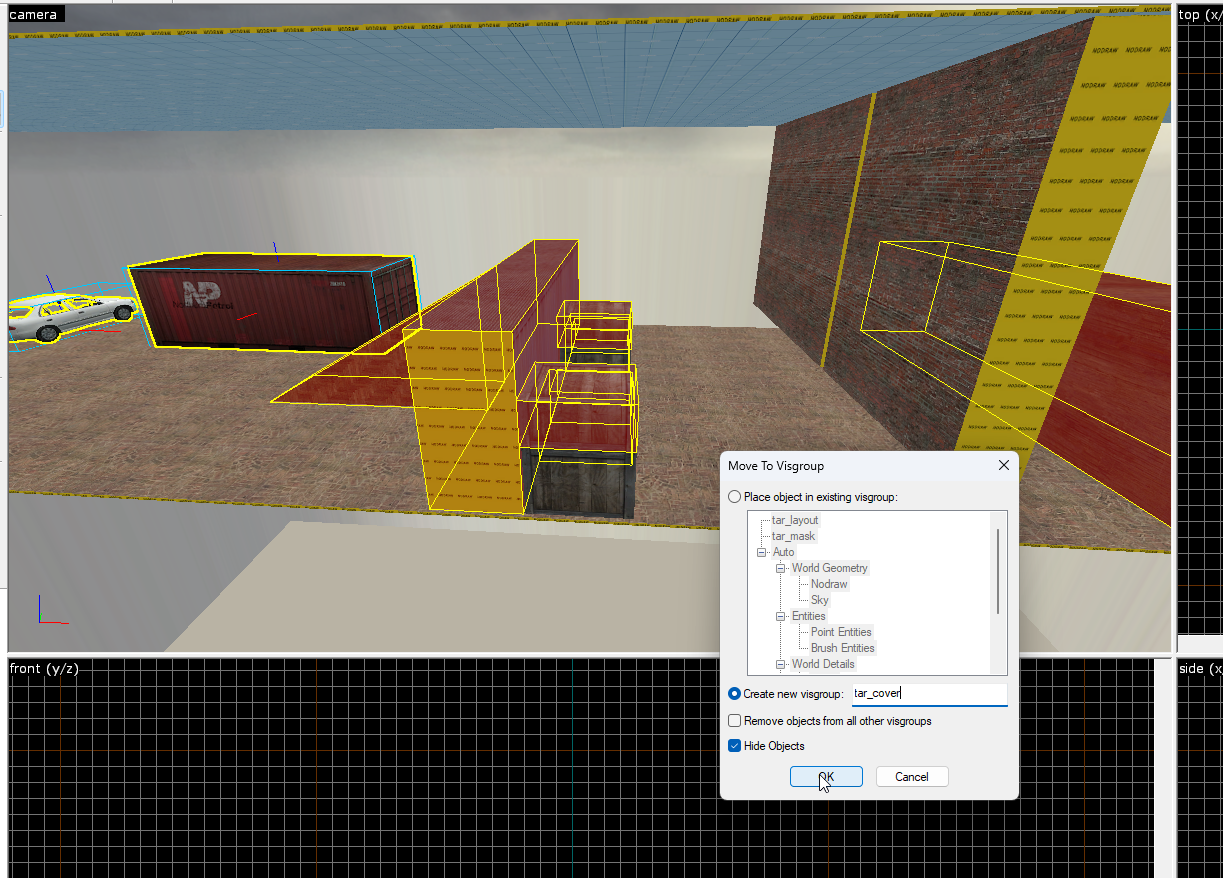
You can assign brushes and props to a vis group called tar_cover.
This places gray items on the radar that are shaped based on the 3D model or brush shape.
Overlap displays elevated walkways on the radar with a striped pattern, making it clear that the player can walk below and above.
Simply assign the brushes to the tar_overlap vis-group.
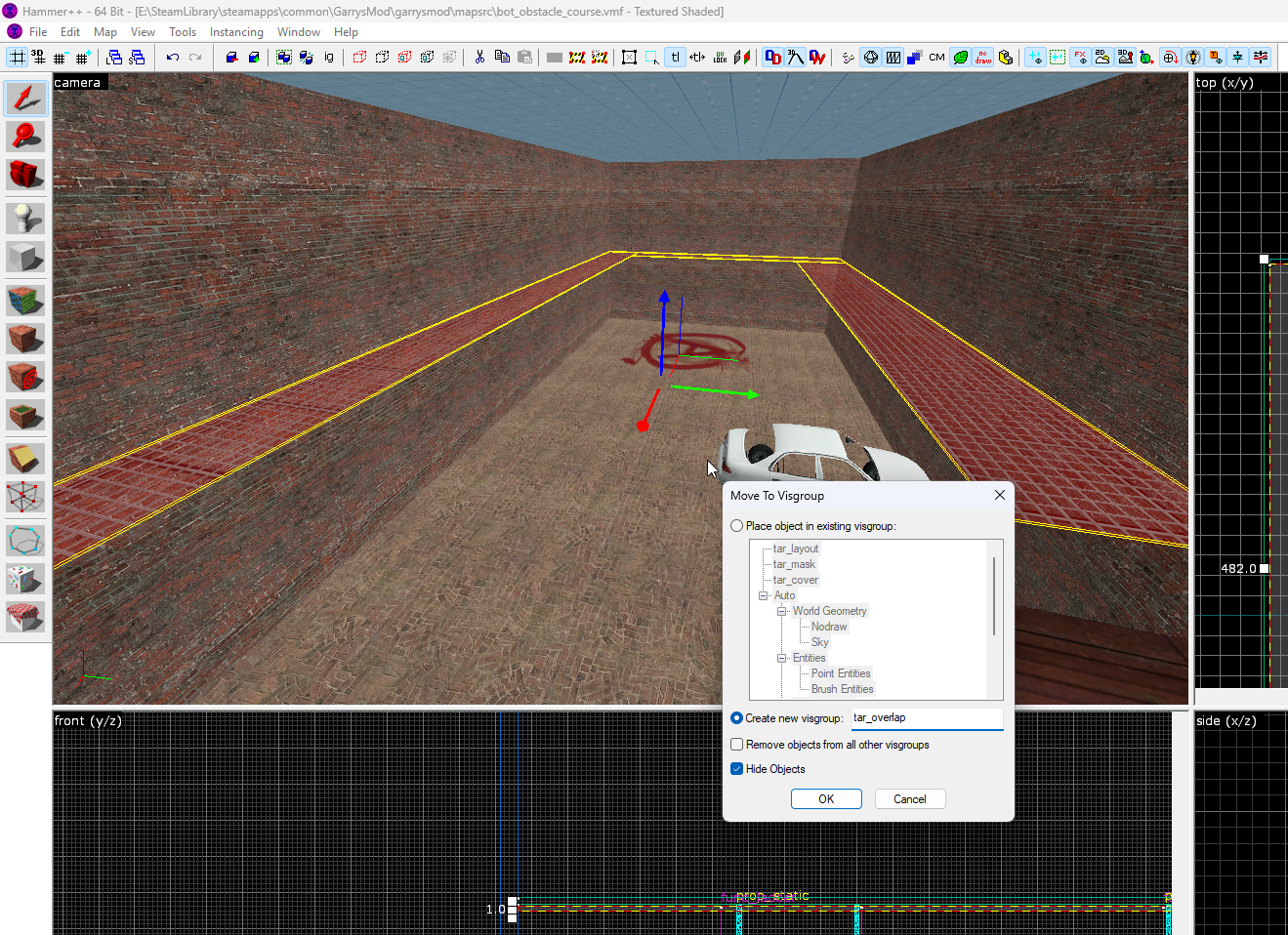
You can customise the radar by creating a new entity and changing the class to tar_config.
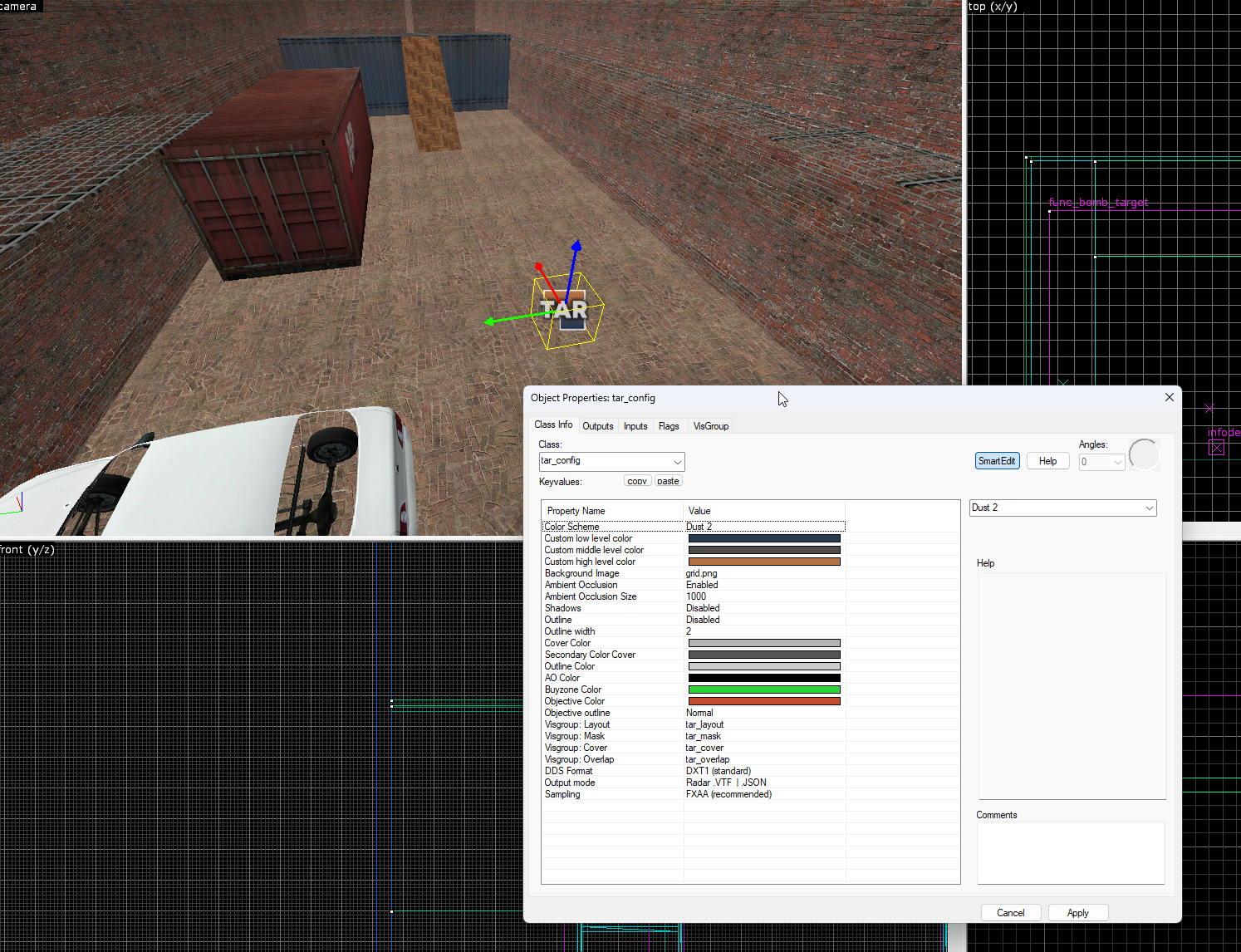
There are a variety of settings you can configure.
The most common configuration changes are the colour scheme of the radar. There are some preset colour configurations such as:
You can also select a custom scheme and set your own colours if you prefer.
In addition, you can customise the Ambient Occlusion, cover colour, and much more.
For the output mode, we recommend leaving it as Radar .VTF | .JSON as this is the only format we support, but other formats were kept in case content creators found them useful.
This is done automatically as both have unique entity names.
Once you've defined layouts, cover and fine-tuned your config, you are now ready to generate the radar for your map.
Go to Hammer++ and then click on the Cartographer tab.
A list of recent Hammer++ maps will be shown.
You may need to close Hammer++ so that it flushes the recent files list to disk.
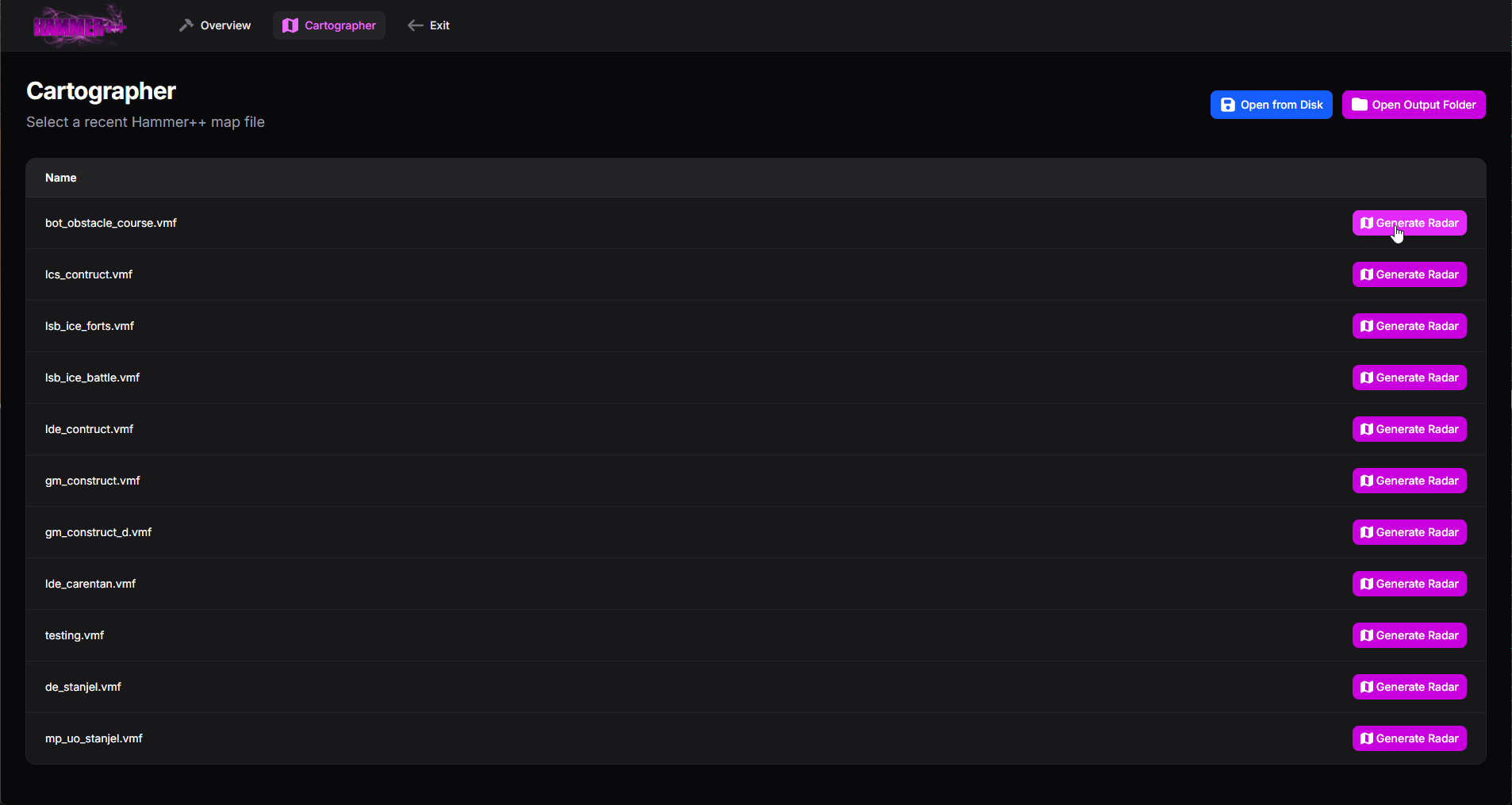
Once you've found the map you wish to generate, click the "Generate Radar" button.
Depending on the size of your map, generating may take a few seconds, but once complete you should see the output of Cartographer.
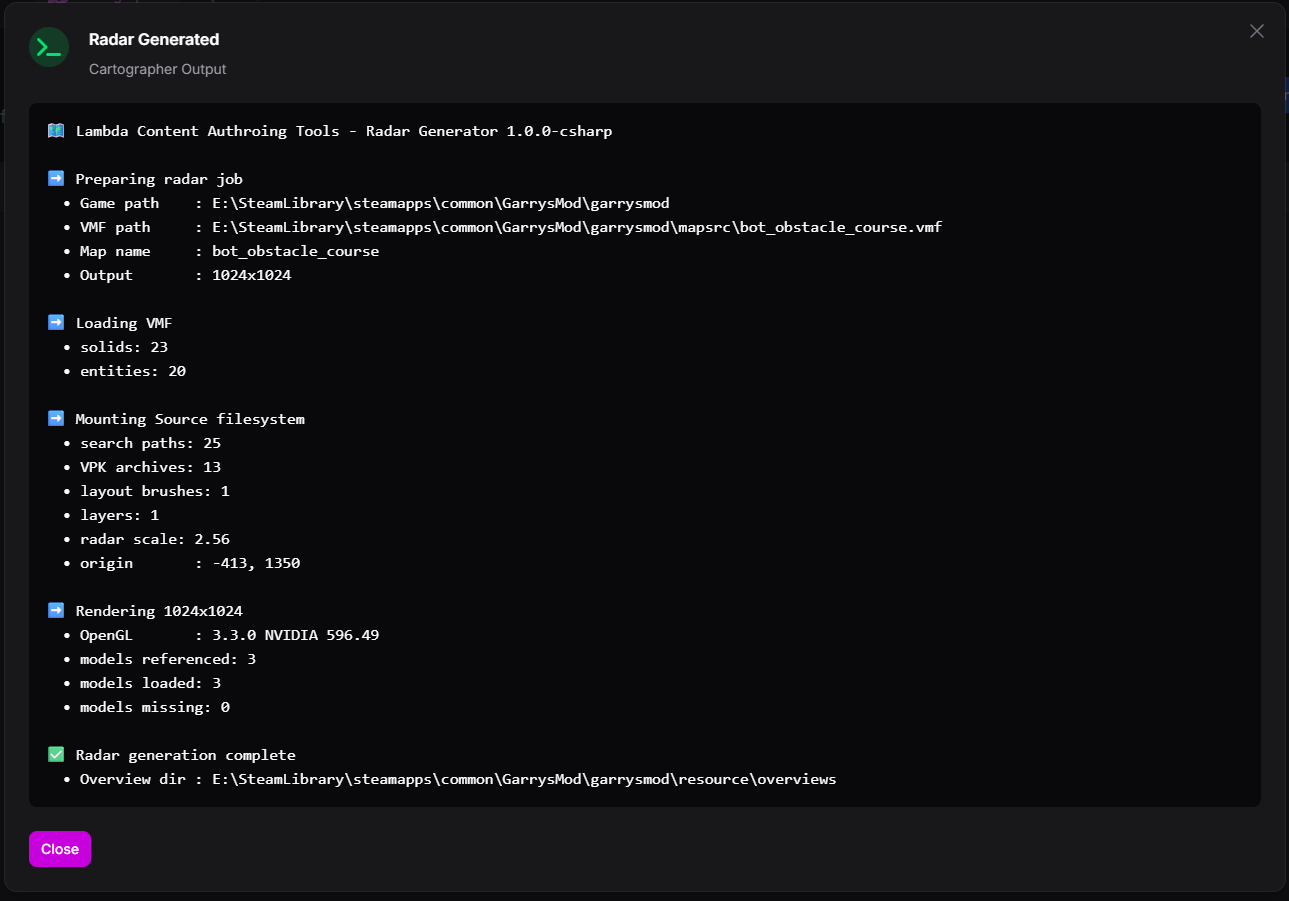
Radars are generated to {GARRYSMOD_PATH}\garrysmod\resource\overviews.
Results should look something like this:
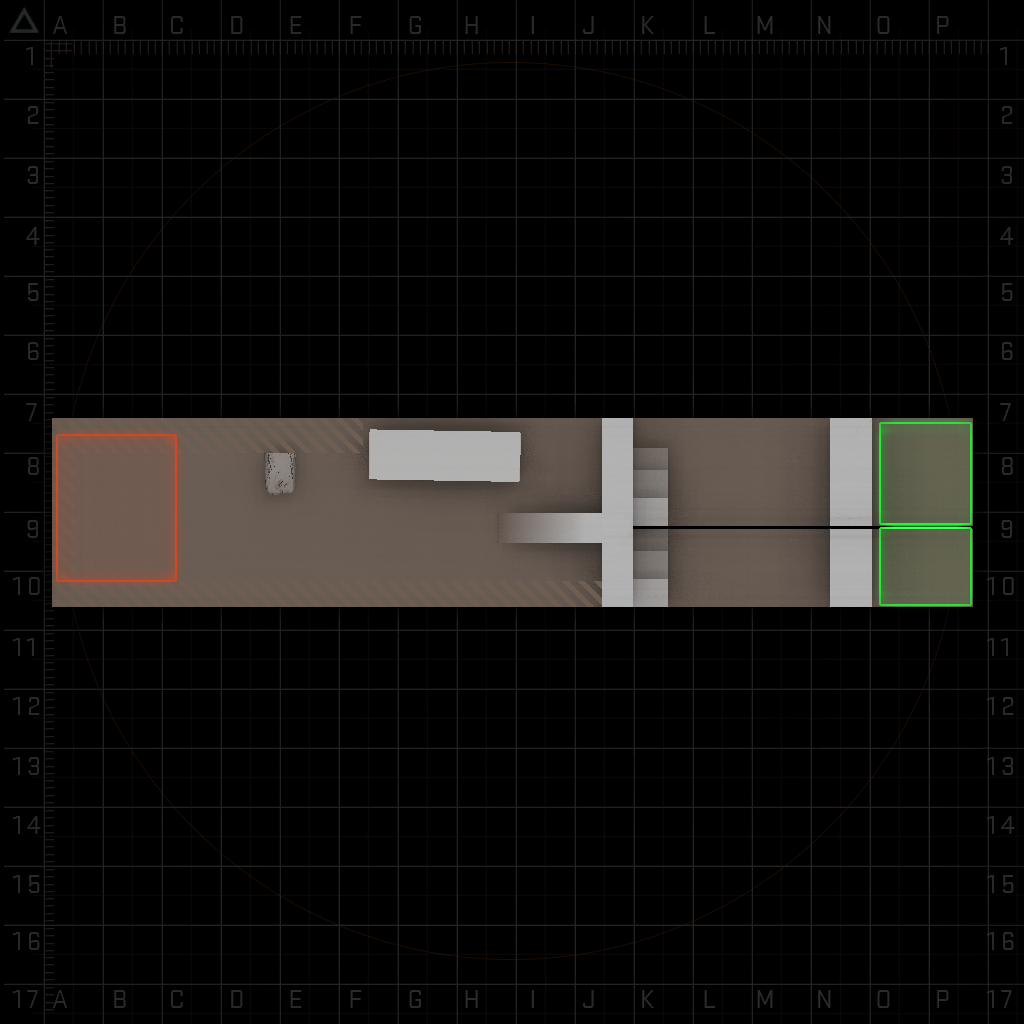


 Counter-Strike: Global Offensive
 Counter-Strike 2
 Left 4 Dead 2