👻 Psst Use code SPOOKY2026 at checkout for 30% off on the Lambda Store up until
Place Forge is a custom Garry's Mod gamemode that allows you to set place names for your map via the Navigation Mesh.
When you open Place Forge in CAT, you'll be prompted to install the gamemode. This will take a few seconds, and upon completion the page will update to show that Place Forge is installed.
A new version of Place Forge, a full 3D navigation mesh editor built into Content Authoring Tools, is available to users enrolled in the Place Forge beta experiment. If you are enrolled, the dashboard tile opens the beta editor automatically, and you can load maps into it directly from Hammer's Map Tools page. This article covers the classic in-game version.
Once you click the "Open Place Forge" button, you'll be prompted to select a map. This only reads maps that are located in the garrysmod\maps folder; it does not include any Source Engine mounting.
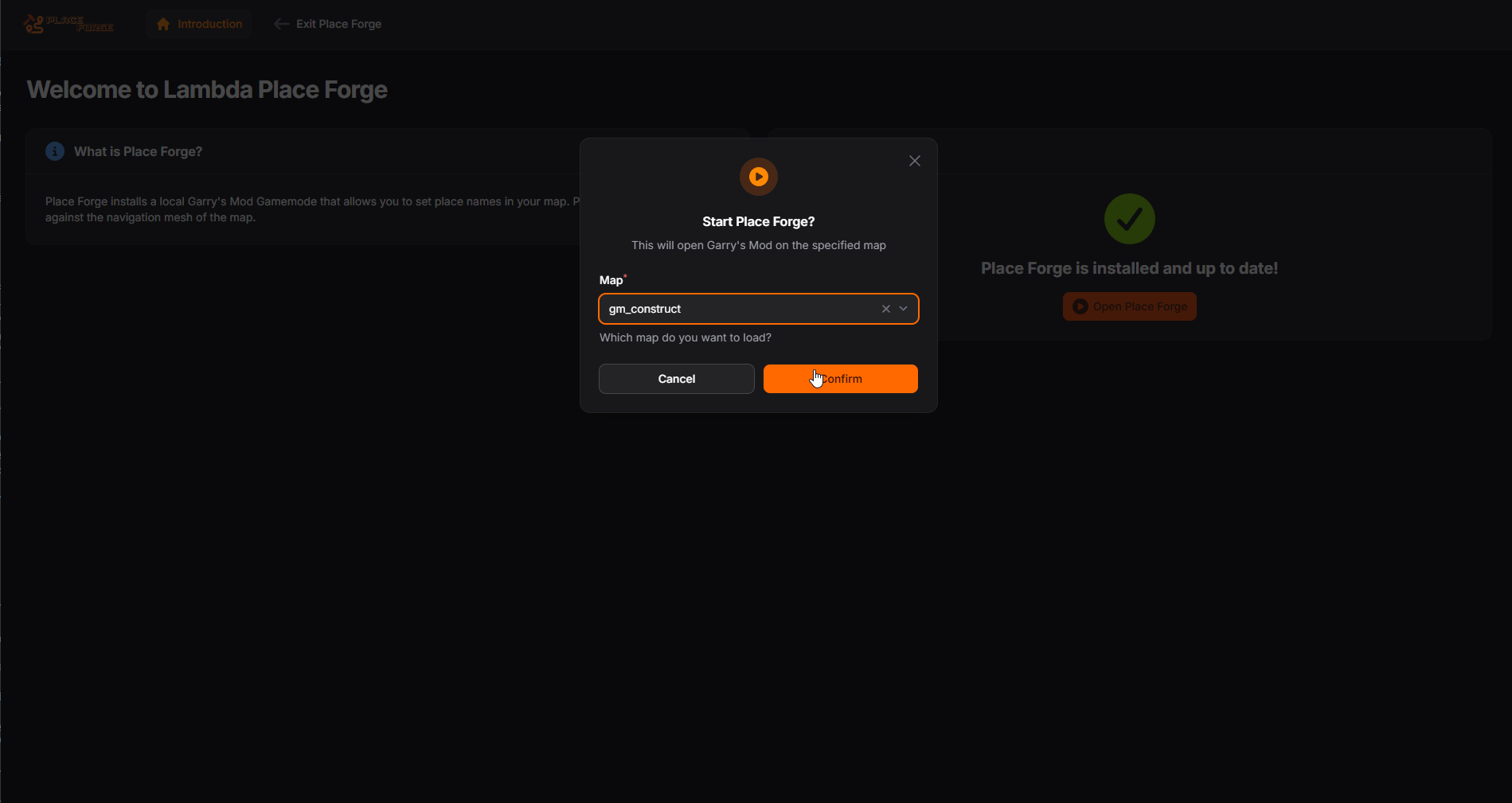
Once you've selected a map and clicked Confirm, you'll get a prompt from Steam to launch the game with the following arguments:
+gamemode place_forge +map #MAPNAME# +nav_edit 1
Click OK and Garry's Mod will automatically launch and you'll be in the gamemode on your desired map.
When you launch in, you should see your map but with navigation mesh editing enabled.
If you do not see any navigation squares on your map, then you have not yet generated a nav file for your map.
To do so, open the console and type nav_generate.
You may get an error stating that there are no walkable positions. In this case, point your crosshair at the floor in the playable area, type nav_mark_walkable, and then try nav_generate again.
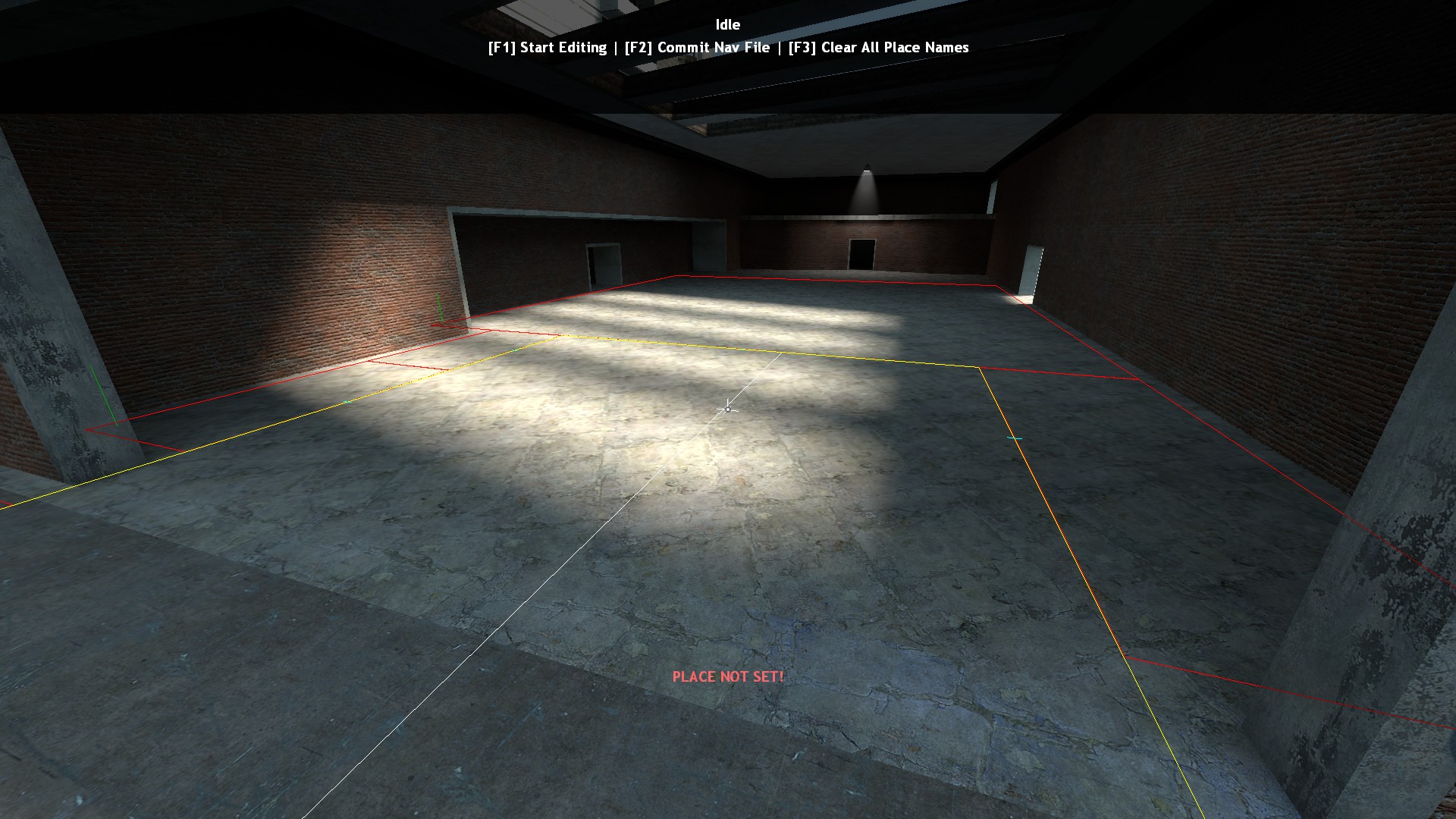
Controls are fairly simple and self-explanatory.
Press [F1] to start assigning place names. You will be shown the following UI:
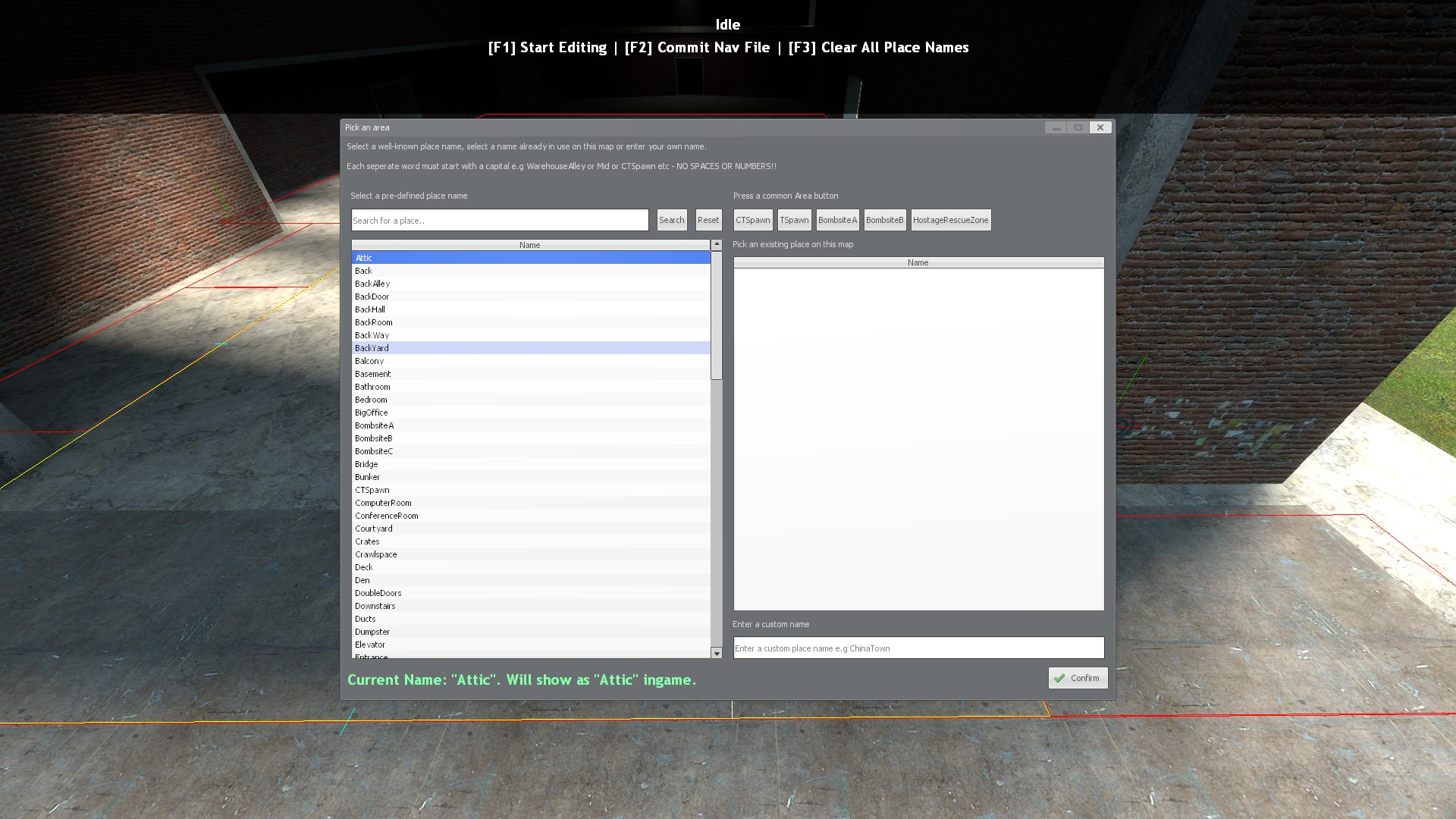
This UI shows you a list of commonly used place names, generally found on other Counter-Strike: Source and Global Offensive maps. Unlike CSS/CSGO, where you are limited to a fixed set of place names, you can use custom place names. We only offer our content in English, so no translations are required for your naming.
At the top right you will see quick access buttons for areas found in every map, such as CT Spawn, T Spawn, and Bomb Site A.
Below that you will see a list of place names already in use on the map, which you can re-use to maintain consistency.
Then there's a free-text box where you can enter a custom name. At the bottom of the window is live-updating text which shows you how your name will appear in-game to players.
Names should only contain Latin letters; Unicode and other character sets are not supported. Numbers and symbols are also not supported.
Spaces are added automatically based upon the capitalisation of the first letter of each word, for example ComputerRoom would show as Computer Room.
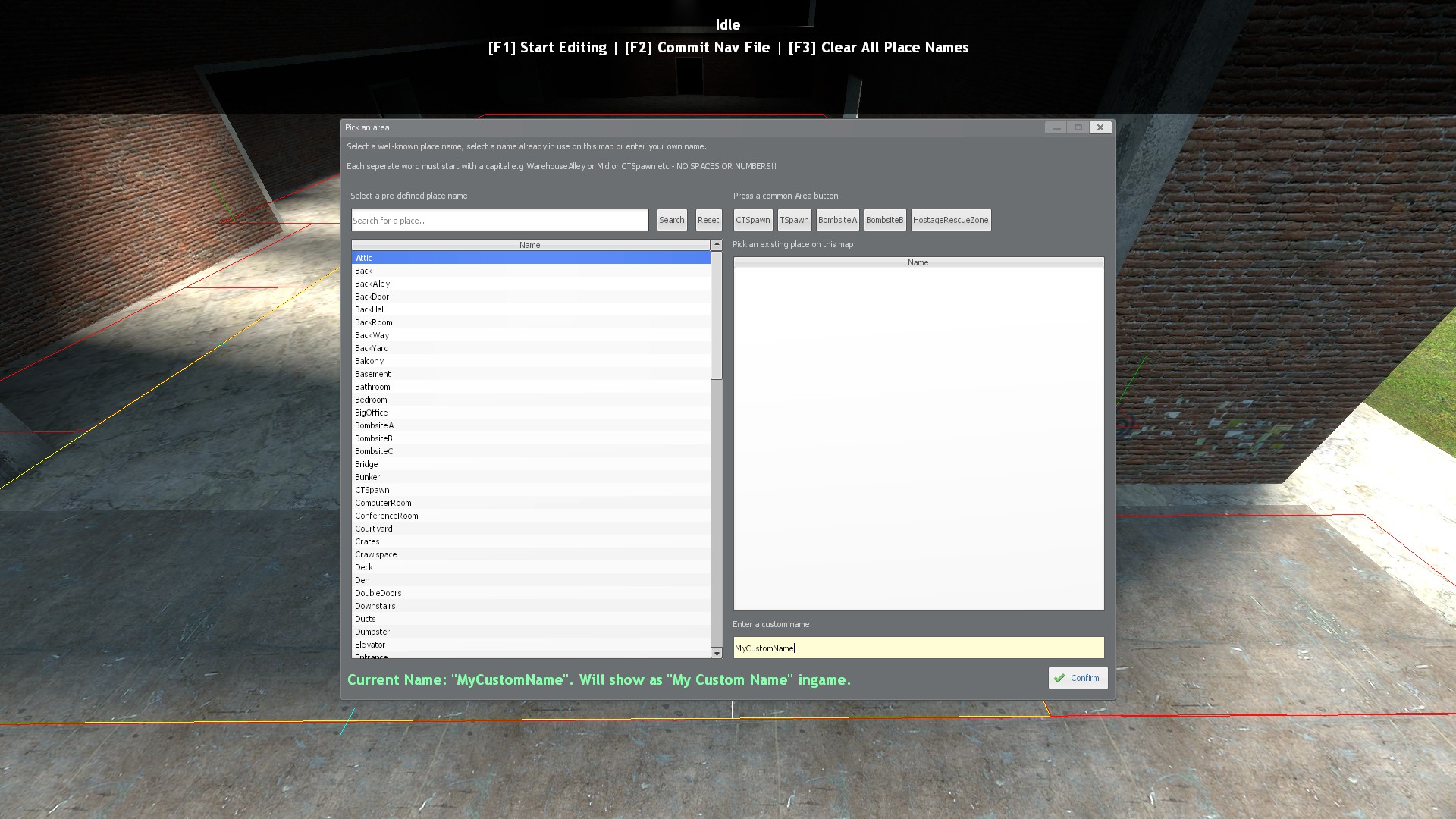
Once you've selected the name that you want, click "Confirm" and then you will be placed in edit mode.
Simply select each navigation square that you wish to assign to that name using the left mouse button.
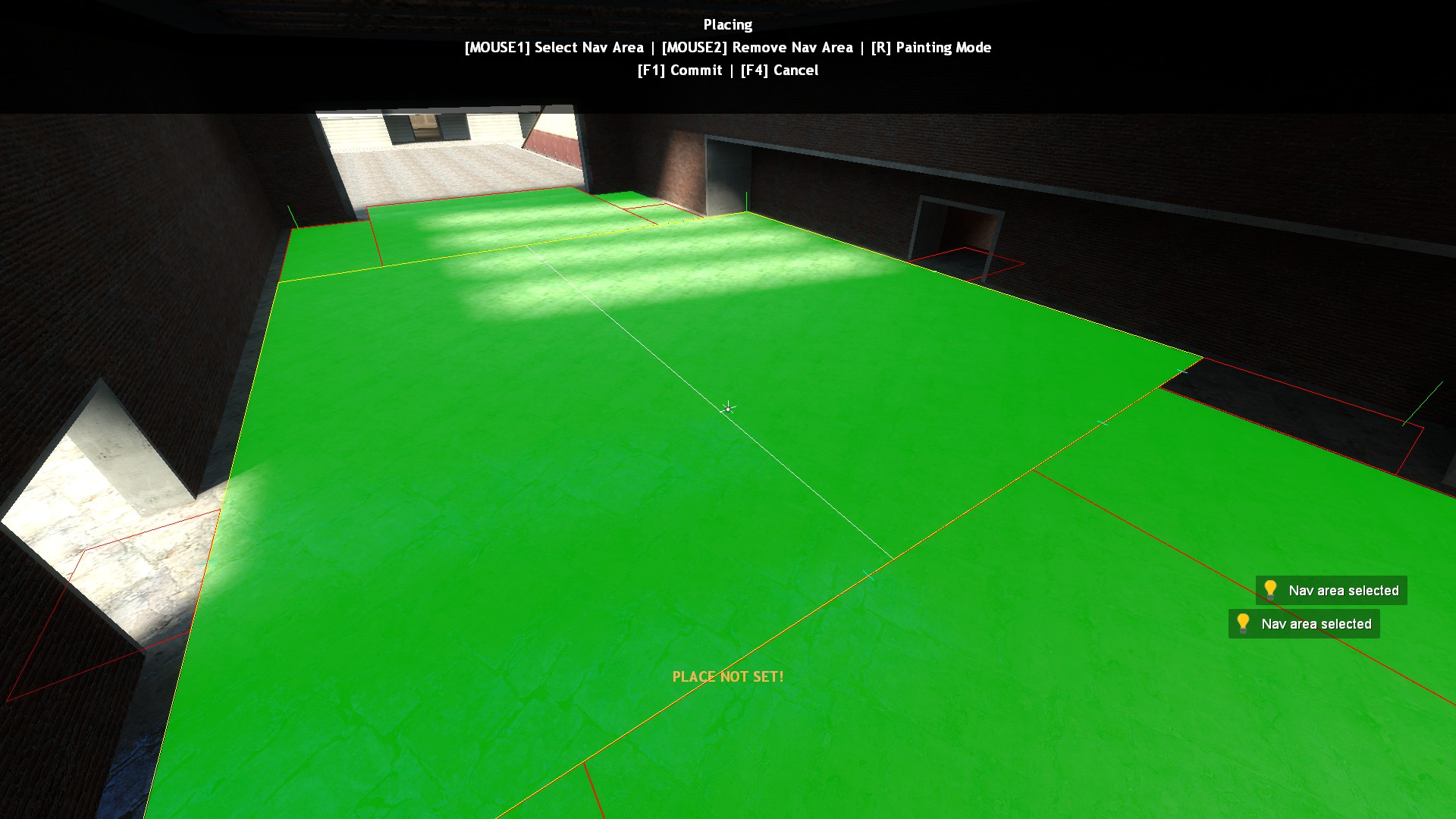
Once you have selected an entire area to be named, press [F1] to save.
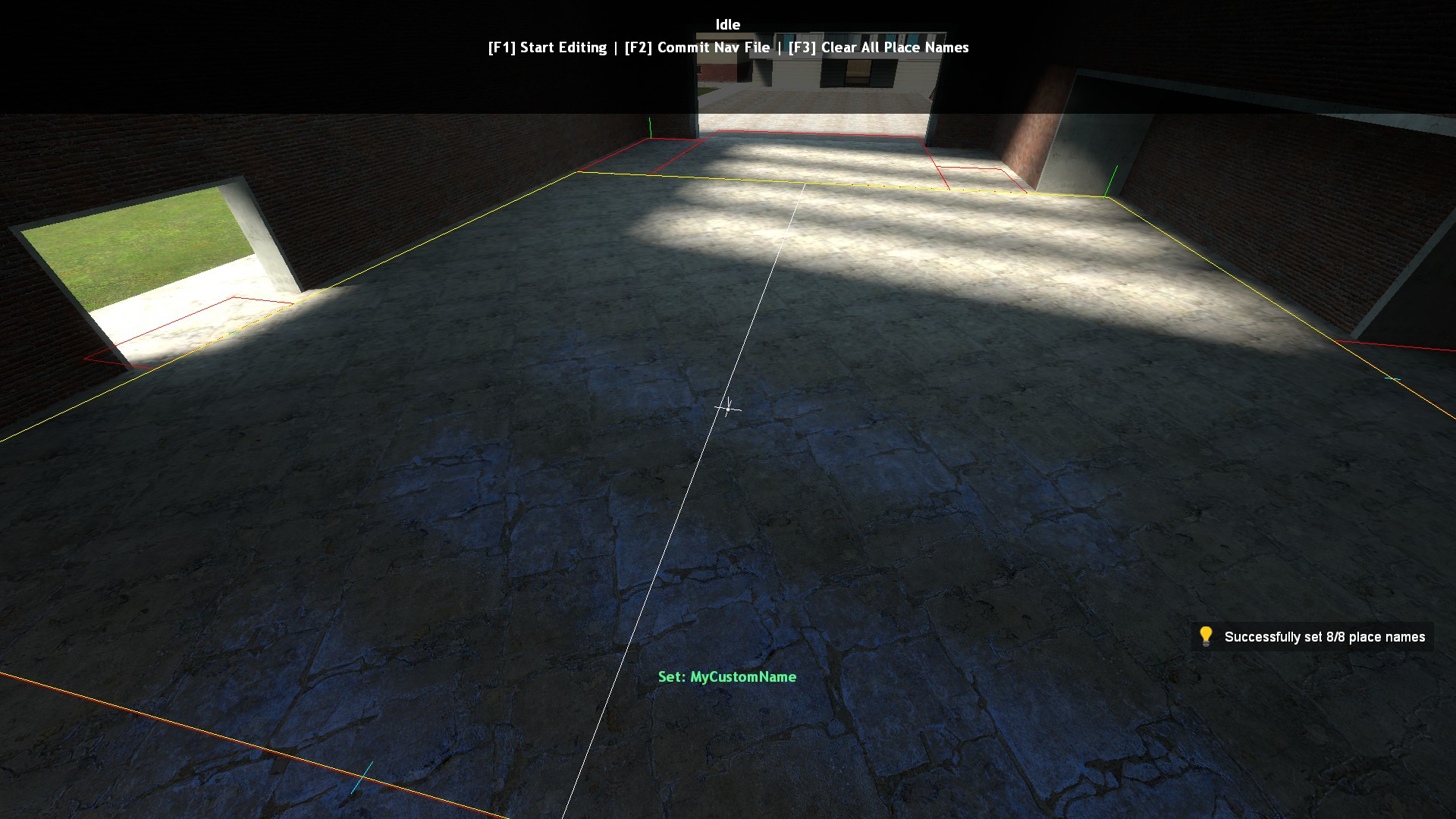
When hovering your crosshair over the area, you will now see the assigned name in green.
Once you have named your map, press [F2] to save the changes to your navigation mesh. That's everything required to assign place names to your map.


 Counter-Strike: Global Offensive
 Counter-Strike 2
 Left 4 Dead 2